.svg)
.svg)
.svg)




How to Prevent Laptop Overheating: Expert Guide 2026
Your laptop's fans kick up during a video call, the keyboard feels warmer than it should, and the cursor starts lagging just when you need the machine most. That pattern usually means heat is building faster than the cooling system can move it out, and the fix starts with simple habits before you ever reach for a screwdriver. If you also want a safety-focused refresher on battery risks that can get worse when a device runs too hot, the Guide for Li-ion battery hazards is worth a look.
Table of Contents
- Why Your Laptop Overheats and What Is at Stake
- Mastering Airflow The First Line of Defense
- The Deep Clean Removing Dust and Debris
- Smart Software and Power Management
- Advanced Thermal Management When to Replace Thermal Paste
- When to Call the Experts in Houston
Why Your Laptop Overheats and What Is at Stake
A hot laptop usually isn't being dramatic, it's telling you something in the cooling path is under strain. Dust can choke the vents, soft surfaces can block intake and exhaust, and heavy software can make the processor work like it's running a race in a closed room. PCWorld recommends keeping the workspace below 75°F, along with good airflow, dust removal, and periodic thermal paste replacement, while Micro Center notes that many CPUs have a maximum safe temperature of about 100°C before thermal throttling or shutdown can happen. That's why how to prevent laptop overheating starts with understanding the whole chain, not just the fan noise.
What the heat is doing inside the machine
Inside the chassis, heat has to move from the CPU and other hot components to the heatsink and then into the air. If any part of that path slows down, temperatures climb quickly, and the fan has to spin harder to compensate. A laptop on a blanket or couch is like trying to cool a car engine with the grille taped over, the parts are still producing heat, but the air can't get through.
The risk isn't just a temporary slowdown. Repeated heat stress can cause performance drops, unstable behavior, and avoidable wear on internal parts. When the cooling system is already struggling, even normal tasks can feel sluggish because the machine is protecting itself.
Why a hot laptop deserves attention fast
Heat also affects reliability in ways people don't always notice right away. A laptop may still boot, open apps, and connect to Wi-Fi, but the repeated thermal strain can make those systems less dependable over time. That's why ignoring a loud fan or a warm keyboard tends to turn a manageable issue into a repair visit.
If a device is heating up around the battery area, it's smart to treat that as a warning, not a nuisance. Keeping the machine cool helps the battery, the processor, and the storage system stay in a safer operating range. For a broader safety context on lithium-ion battery behavior, the earlier linked guide is a useful companion read.
Mastering Airflow The First Line of Defense
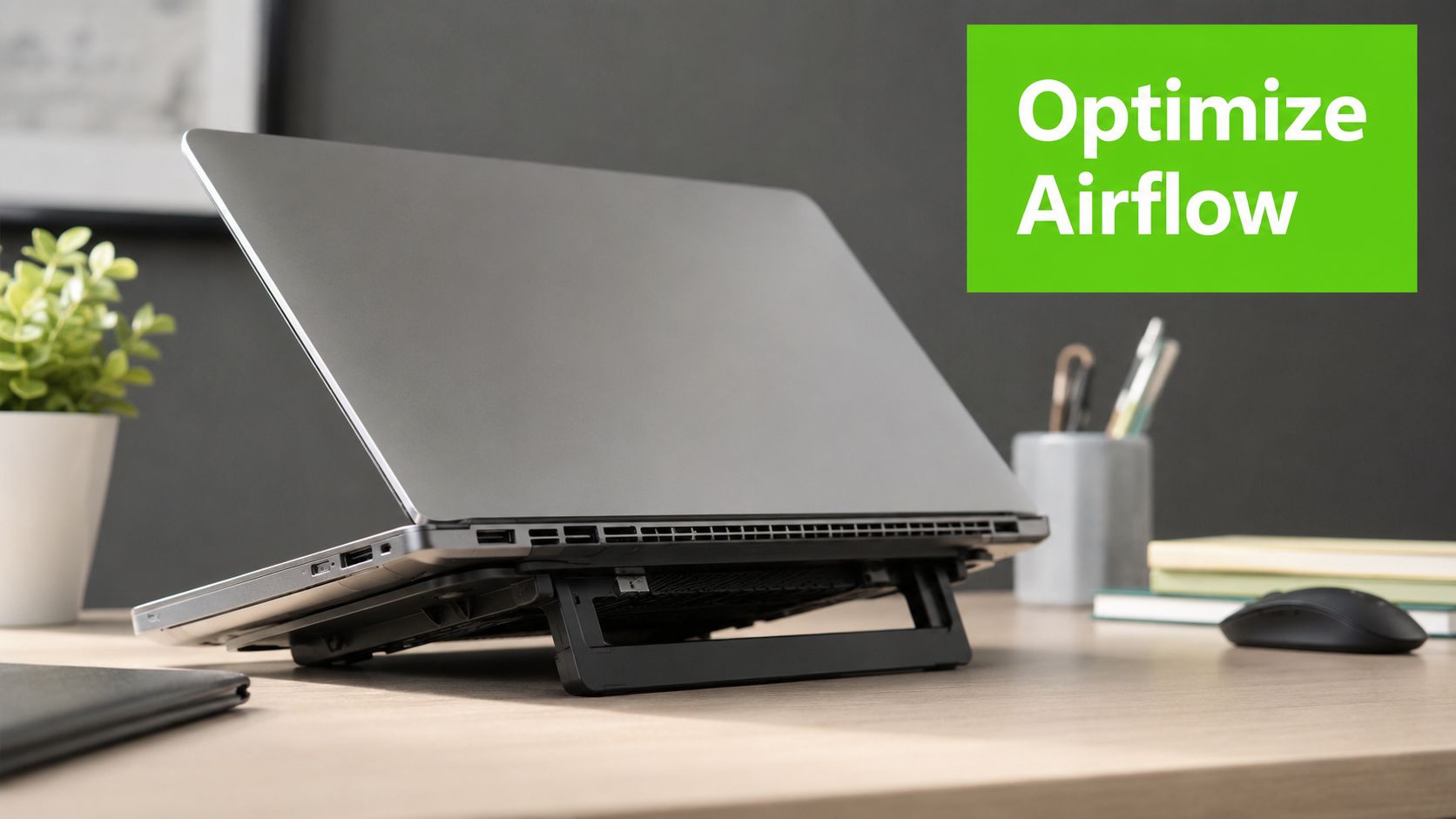
The fastest fix is often the least glamorous one, give the laptop room to breathe. Soft surfaces smother vents the way a pillow smothers your face, so a bed, couch, or carpeted floor is a bad long-term desk. A flat table, a hard tray, or even a notebook stack can make a surprising difference because the vents can move air instead of fighting fabric.
Build a setup that doesn't trap heat
A simple stand raises the chassis and opens up the bottom intake area. If you don't have one, a thick book works as a temporary spacer, as long as it leaves both the intake and exhaust areas clear. The point is not fancy gear, it's airflow.
Practical rule: if the fan can't pull in cool air and push out hot air, the laptop starts recycling its own heat.
That matters because laptops are compact by design. They don't have the open interior space of a desktop tower, so a blocked vent has a bigger impact. You're not just making the laptop cooler, you're helping the cooling system work as intended.
Habits that cost nothing
A few zero-cost habits help immediately:
- Keep vents open: Don't set the machine on cushions, blankets, or thick fabric.
- Use a hard, level surface: A desk or table gives the underside room to breathe.
- Leave some clearance around the sides: Hot air needs an exit path, not a dead end.
- Watch for heat buildup during long calls: If the bottom gets noticeably warm, adjust the setup before the laptop throttles.
For cases where the fan never seems to settle down, the internal cooling hardware may need attention too, and that's where a deeper check of laptop fan repair and symptoms can help you separate airflow problems from a failing fan.
The Deep Clean Removing Dust and Debris
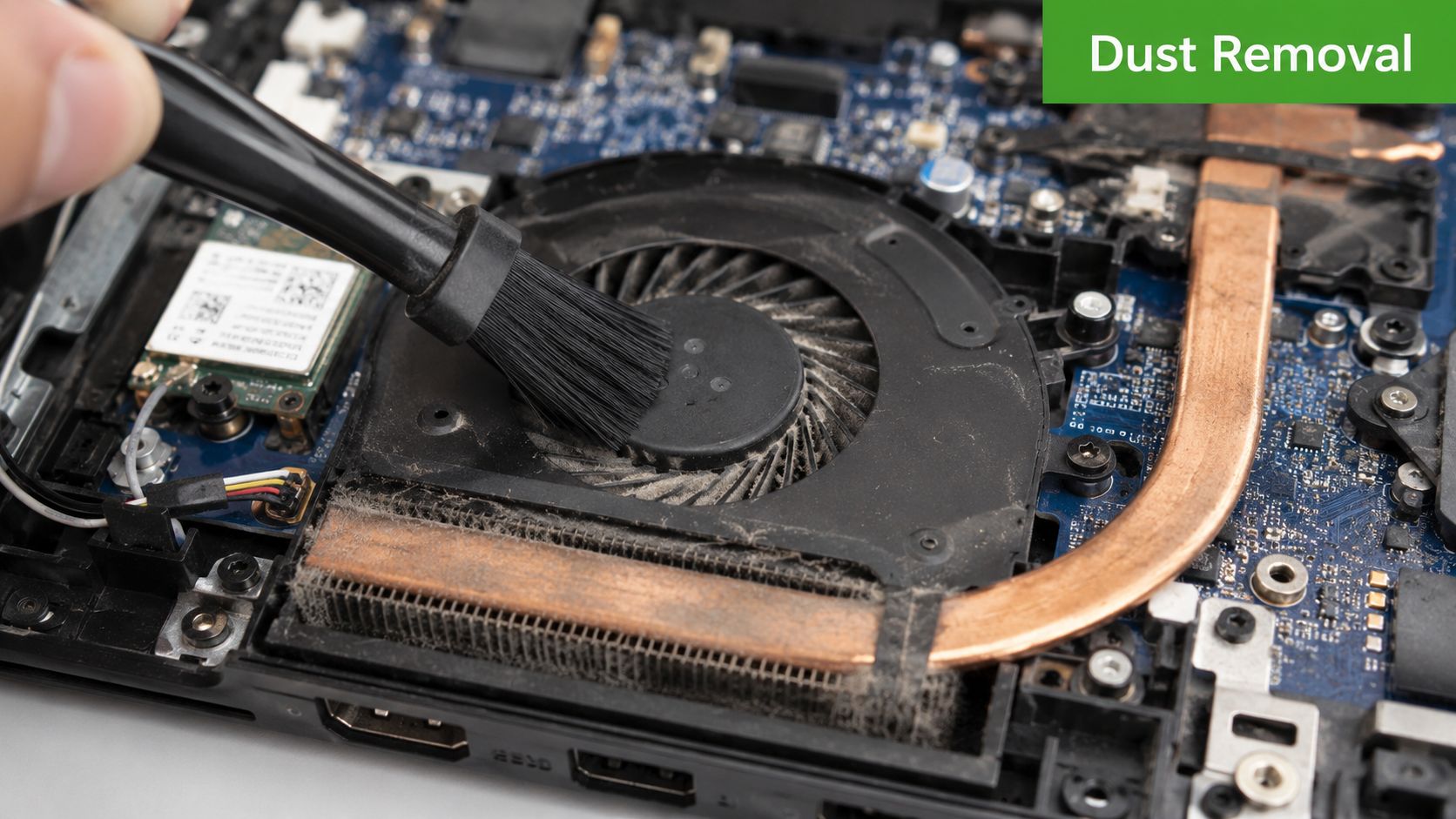
Dust is the quiet enemy of laptop cooling. It settles on fan blades, gathers in vents, and mats itself into the heatsink fins until air can't move cleanly through the system. The result is predictable, the fan works harder, the machine runs hotter, and the noise climbs with it.
Clean the vents without making things worse
Start with the laptop powered off and unplugged. Use compressed air in short bursts, angled across the vents rather than blasted straight down into them, because the goal is to dislodge dust, not drive it deeper into the machine. If you can reach a fan blade safely through an access panel, hold the fan in place so it doesn't free-spin from the air pressure.
A vacuum sounds tempting, but it's the wrong tool here. The suction can create static and put stress on delicate parts, which is a terrible trade for a cleaning job. A brush can help on visible dust around the vents, but don't poke aggressively into the chassis.
Short bursts beat a long blast every time. The air should carry dust out, not churn it around.
Know when a cleaning job is no longer simple
If dust is packed tightly inside the cooling assembly, or if the vents are only a small part of the blockage, compressed air from the outside may not be enough. That's where a proper internal service becomes the safer call, because some laptops need partial disassembly to clean the heatsink and fan path correctly. A more detailed service walkthrough like how to fix an overheating laptop can help you judge whether the issue is still in DIY range.
A clean fan doesn't just move more air, it moves air more predictably. That matters because a cooling system doesn't fail all at once, it usually gets worse as airflow becomes more restricted. If the laptop is still running hot after a proper dust clean, the problem has probably moved beyond surface maintenance.
Smart Software and Power Management
A laptop can still run hot after the vents are clean, because software may be keeping the processor busy far more often than you expect. A handful of browser tabs, a cloud sync client, a chat app, and a background updater can all wake the CPU up again and again, and each wake-up adds heat. The practical fix is to cut unnecessary work first, then let the machine spend more time idling instead of constantly ramping back up.

Trim the workload before changing hardware
Open Task Manager on Windows or Activity Monitor on macOS and look for apps that sit near the top of CPU usage. Close the ones you are not using, especially if they are syncing files, indexing data, or pulling updates in the background. That habit often lowers fan noise faster than people expect, because the laptop stops chasing a moving target.
Power settings matter too. PCWorld suggests limiting CPU power to 75% for immediate heat reduction, and that makes sense because a processor that is not being pushed as hard makes less heat in the first place. On Windows, that usually means choosing a more efficient power profile instead of maximum performance. On macOS, the idea is similar, let the system favor efficiency when you do not need peak speed.
A small change in settings can make a real difference. A laptop that is only doing everyday work does not need to run like it is under a heavy gaming load, and keeping it in a lighter power mode helps the cooling system stay ahead of the heat instead of constantly catching up.
Using Software to Find the Heat Source
If a laptop feels hot during simple tasks, something in the background may be chewing through resources. Browser extensions, sync utilities, and old launch items can keep the system awake without being obvious. Checking what is active matters more than guessing.
Good habits are simple:
- Watch resource hogs: Identify the apps that keep CPU use high.
- Close what you are not using: Fewer live programs mean less heat pressure.
- Prefer efficiency for routine work: Word processing and email do not need a turbo profile.
- Keep drivers current: Old drivers can make the system work less smoothly and produce more heat.
- Use temperature tools as a diagnostic check: Real readings beat assumptions when you are testing a fix.
That process gives you a clear path. Start with the zero-cost fixes, trim background tasks, adjust power settings, and watch whether temperatures settle down. If the laptop still runs hot while software usage looks normal, the problem is likely deeper than settings and app cleanup, and that points to the cooling hardware instead.
In Houston, We Fix PC Laptop also handles internal laptop repair and maintenance when the issue sits beyond software and power settings.
Advanced Thermal Management When to Replace Thermal Paste
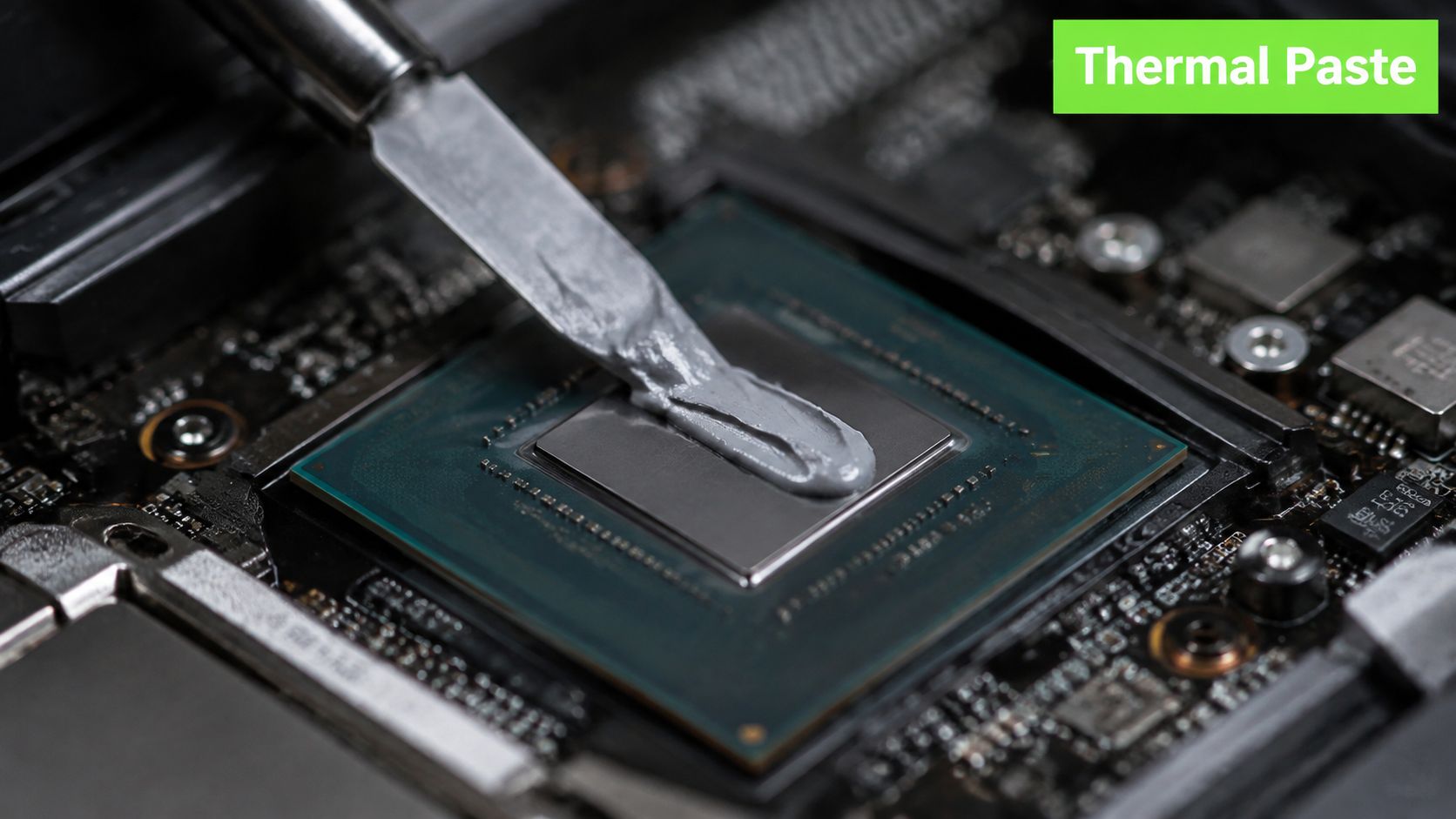
Thermal paste sits between the processor and the heatsink, and its job is simple, help heat move out of the chip and into the cooling assembly. It's not there forever. As it ages, it can dry out and stop doing that job well, which means the machine may overheat even after you've cleaned the vents and fixed the software load.
Signs the paste may be failing
When thermal paste degrades, the clue is often heat that doesn't match the workload. A laptop can feel unusually hot at idle, or the fan can surge without a clear reason. If the machine was fine for years and then slowly became hotter for no obvious reason, the thermal interface is worth suspecting.
PCWorld recommends periodic thermal paste replacement and suggests a 3 to 4 year interval for that maintenance, while also reminding users to keep the machine in a cool, well-ventilated environment and off soft surfaces that block airflow. Micro Center adds that many CPUs have a maximum safe temperature of about 100°C, after which thermal throttling or shutdown can happen. Staying well below that range is what keeps the laptop reliable and avoids sudden performance drops.
Why this is usually a technician job
Replacing thermal paste sounds simple on paper, but the process can be finicky. The laptop usually has to be opened carefully, the cooling assembly removed, old material cleaned away, and the new paste applied in the right amount before reassembly. Too little paste leaves gaps, too much can create its own mess, and one loose screw can change contact pressure enough to defeat the whole job.
For readers who want to understand the maintenance side better, the thermal paste tag is a useful place to look through related repair topics. The important thing is knowing when to stop treating overheating as a settings problem and start treating it as a cooling hardware problem.
If a laptop still runs hot after airflow fixes, dust removal, and power management, thermal paste becomes one of the most likely next suspects. That's the point where a clean diagnosis matters more than another round of trial and error.
When to Call the Experts in Houston
Call a technician when the basics don't change the behavior. If the laptop still overheats after you've improved airflow, cleaned the vents, and trimmed background load, the root cause is probably inside the cooling system. Grinding noises, a fan that won't spin, or heat that comes back quickly after cleaning are all signs that the problem needs hands-on inspection.
That's also the right time to think beyond the individual laptop if you're managing older office hardware. For teams replacing end-of-life machines, securely wiping old business laptops is part of the cleanup process before the devices leave service. Heat problems and aging hardware often show up together, and a good repair plan should account for both.
A professional check is the smart move when you've reached the point of suspicion, not certainty. The technician can test the fan, inspect the thermal path, and determine whether the issue is dust, paste, a failing cooling part, or a deeper board-level problem. That kind of diagnosis saves time because it stops the cycle of half-fixes.
If you're in Houston and the laptop still runs hot after the easy steps, bring it to a shop that can open it safely, test the cooling system, and replace worn parts as needed. We Fix PC Laptop handles laptop cooling and repair work for these exact cases, so you can get a real diagnosis instead of guessing at the next step.
If your laptop still runs hot, let We Fix PC Laptop take a look and pinpoint the cause before it turns into a bigger repair. Bring in the machine, describe when it gets hot, and ask for a cooling-system check so you can get back to normal use with fewer surprises.
- How to Fix an Overheating Laptop: A Complete Repair Guide
- How to Protect Personal Data Before Sending a PC for Repair
- How Business Laptop Repair Minimizes Workplace Downtime
- Low FPS in Games? Common Gaming PC Hardware Problems Explained
- How to Choose a Reliable MacBook Repair Service Near You in Houston
- Benefits of Choosing Professional In-Home Computer Repair Services