.svg)
.svg)
.svg)




How to Fix an Overheating Laptop: A Complete Repair Guide
Your laptop is hot enough to feel through the palm rest, the fan won't stop, and it's starting to slow down or shut off during normal work. That's the moment to reach for a can of air or a random setting tweak, but the faster fix is usually a proper diagnosis. How to fix an overheating laptop starts with figuring out whether the heat is coming from software load, blocked airflow, worn thermal material, or a battery and power issue.
Table of Contents
- Why Your Laptop Overheats and What to Do First
- Measuring Laptop Temperatures Before Changing Anything
- Identifying Software and Workload Causes of Heat
- Cleaning Vents, Fans, and Replacing Thermal Paste
- When Overheating Is a Battery or Power Problem
- Deciding Between DIY Fixes and Professional Laptop Repair
Why Your Laptop Overheats and What to Do First
A customer usually notices the problem at the worst possible time, during a video call, while exporting a file, or right in the middle of a game. The laptop gets loud, the cursor starts lagging, and then the machine either throttles hard or shuts itself down. That doesn't automatically mean dust is the villain. It can just as easily be a workload spike, a power setting that lets the CPU boost too aggressively, or a cooling system that's no longer moving heat the way it should.
Start by treating heat as a symptom
The repair mindset is simple, trace the cause before touching the hardware. If the laptop only runs hot when Chrome, Teams, a game launcher, or a render job is active, the issue may be load-related rather than a broken fan. If it stays hot even while doing nothing, that points more toward a cooling-path problem, a runaway process, or a battery and charging issue.
Practical rule: don't clean first and ask questions later. A fast external cleaning can help, but it won't fix a system that's idling at high CPU usage or a machine whose firmware is pushing the chip too hard.
That's why technicians look at symptoms in context. A laptop that overheats only under stress needs a different fix from one that runs hot on the desktop with no meaningful workload. The right order saves time, avoids unnecessary disassembly, and keeps you from replacing parts that were never the root cause.
Measuring Laptop Temperatures Before Changing Anything
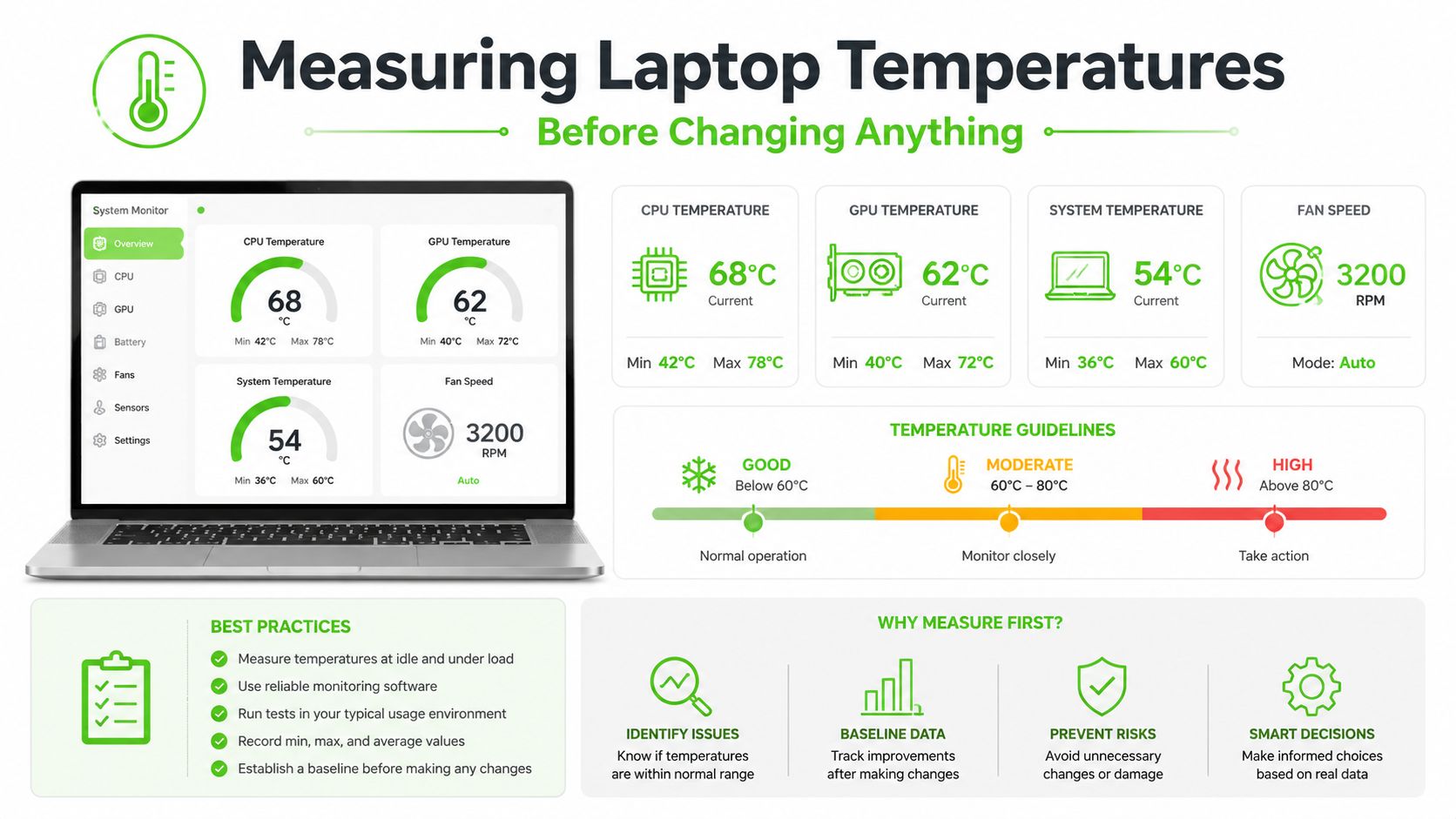
Before changing a single setting, measure what the laptop is doing. On Windows, use HWMonitor or a similar monitoring tool. On Mac, use a stats utility, then run the laptop under a normal workload for 15 to 20 minutes so you capture real peak temperatures, not a brief idle reading. A short test under your usual apps gives you a baseline you can compare after each fix. The temperature-baseline method is the right starting point because it turns a vague complaint into a measurable maintenance job.
Read the numbers the way a technician would
For diagnosis, CPU temperatures below 90°C are generally acceptable under load, while above 95°C is a problem. For discrete GPUs, below 85°C is fine, while sustained temperatures above 90°C is concerning. Those thresholds give you a practical line between warm and unhealthy. A machine that sits near the acceptable range during a heavy workload may just need better airflow or power tuning, while a machine that blows past those levels is telling you something is wrong in the cooling path or the workload stack.
Use the test to separate likely causes
If temperatures climb sharply during the 15 to 20 minute test while the fans are already running, look harder at clogged vents, failing fans, or degraded thermal paste. If temperatures are only high during heavy multitasking or gaming, reducing background load or power limits may be enough. That distinction matters because it keeps you from opening the chassis before you've ruled out a software cause.
Good troubleshooting starts with a baseline. Without one, every change feels like guesswork, and guesswork leads to extra parts, extra time, and a lot of wasted effort.
If you're on Windows and want a broader performance cleanup path alongside the thermal check, this Windows performance guide is a useful companion reference. The key is to compare before and after, not to assume the first fix did the job because the fan sounds quieter.
Identifying Software and Workload Causes of Heat
A hot laptop doesn't always need a screwdriver. Background processes, browser extensions, driver inefficiency, and malware can keep the CPU busy enough to heat the machine even when the vents are clear. Repair guides also point to update loops and runaway apps as common culprits, which is why the first software check is always the process list, not the fan.
Check what the system is doing at idle
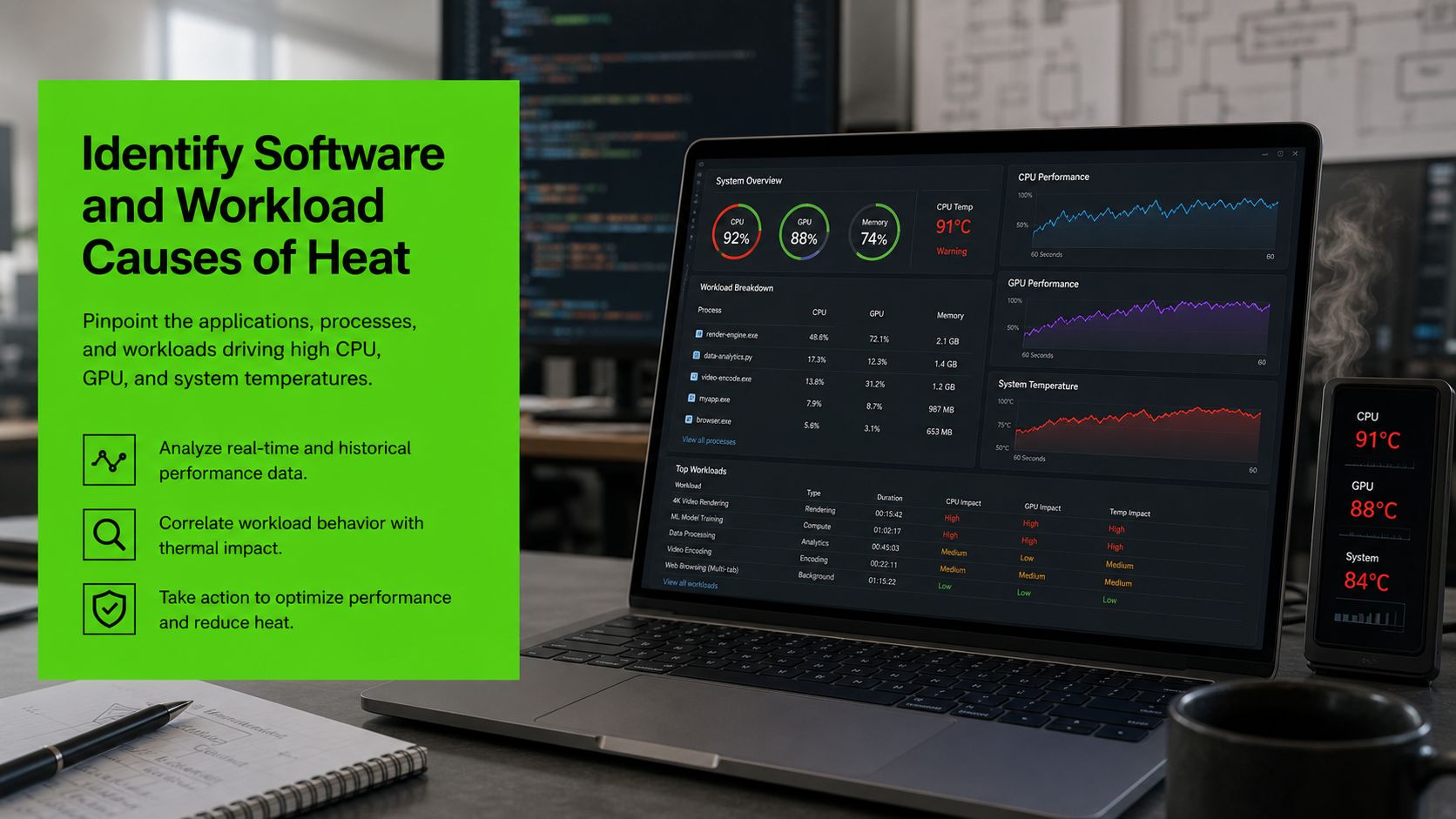
Open Task Manager on Windows or Activity Monitor on Mac and look for sustained CPU use when the laptop should be quiet. A practical threshold is any process using more than about 30 to 40% CPU at idle. That level usually points to malware, update loops, indexing, browser bloat, or a runaway app rather than a cooling failure.
If one app is chewing through resources, close it and watch the temperatures again under the same workload you used for the baseline. If heat drops fast, you've found the culprit. If the laptop stays hot, keep moving down the list instead of treating every symptom as a dust problem.
Fix the software side before disassembly
Driver issues matter more than many users expect. Updating graphics and chipset drivers can resolve overheating that looks like a fan or paste failure but isn't. Firmware updates can also change fan curves or power management behavior, which is why a laptop that was fine last month can start running hot after an update or start misbehaving because it hasn't been updated in a while. Dell's own troubleshooting path also includes hardware diagnostics plus BIOS and driver updates to help confirm whether the problem is thermal, firmware-related, or workload-driven.
A few low-risk changes can help without wrecking usability:
- Close background apps that don't need to run.
- Move the laptop to a hard, flat surface so intake vents can breathe.
- Check browser extensions if the heat tracks to web browsing.
- Review power settings if the machine is always running at maximum output.
Reducing the Maximum processor state is one of the cleanest software-side controls. Some repair guides recommend lowering Windows' setting from 100% to 99% to prevent turbo boost behavior and trim heat without a major performance penalty. If the machine is still too hot after process cleanup and power tuning, the problem is probably not software alone.
Cleaning Vents, Fans, and Replacing Thermal Paste
If the temperature baseline points to cooling trouble, start outside the chassis and work inward. Clear the external vents first with compressed air, because that is the fastest low-risk check and it often tells you whether dust is part of the problem. Use short bursts, keep the can upright, and do not spray continuously. Continuous air can spin the fan backward or stress the bearings.
Move from quick airflow fixes to internal service
A raised laptop or a cooling pad can help when the intake vents are starved for air, especially on desks with soft surfaces or tight clearance. If the vents are visibly dusty, that still only addresses the outside. A deeper internal cleaning takes longer and means opening the machine to clear dust from the fan blades and heatsink fins, which is the right move when surface cleaning does not change the temperatures.
For laptops that are 3+ years old, thermal paste is often part of the problem too. Replacing it takes more time and care than a vent clean, because the heatsink has to come off cleanly and go back on with proper contact pressure. After a proper cleaning and repaste, technicians often see CPU temperatures drop under the same workload. That matters on thin laptops, where there is very little thermal headroom. The repaste-and-cleaning workflow is why technicians treat thermal service as staged maintenance, not a single magic fix.
Re-test before calling it done
After cleaning, run the same workload again for the same amount of time you used in the baseline test. If temperatures improve and stay inside the safe range, the job worked. If the fan sounds quieter but the numbers barely move, do not call it fixed yet. Quiet fan noise can hide a poor heatsink seal, clogged internal fins, or a fan that is barely spinning.
A seized, grinding, or noisy fan points to hardware wear, not a software setting. At that point, replacement is usually necessary.
Clean vents help. Clean vents, healthy fan movement, and fresh thermal paste are what restore real cooling capacity.
When Overheating Is a Battery or Power Problem
Heat does not always mean dust. On newer thin-and-light laptops, battery wear, charging behavior, and power-management firmware can push temperatures up even after the fans and vents have been cleaned. I check for those causes early, because a machine can still run hot while the airflow path looks normal and the heatsink is clear.
Watch for the boundary cases
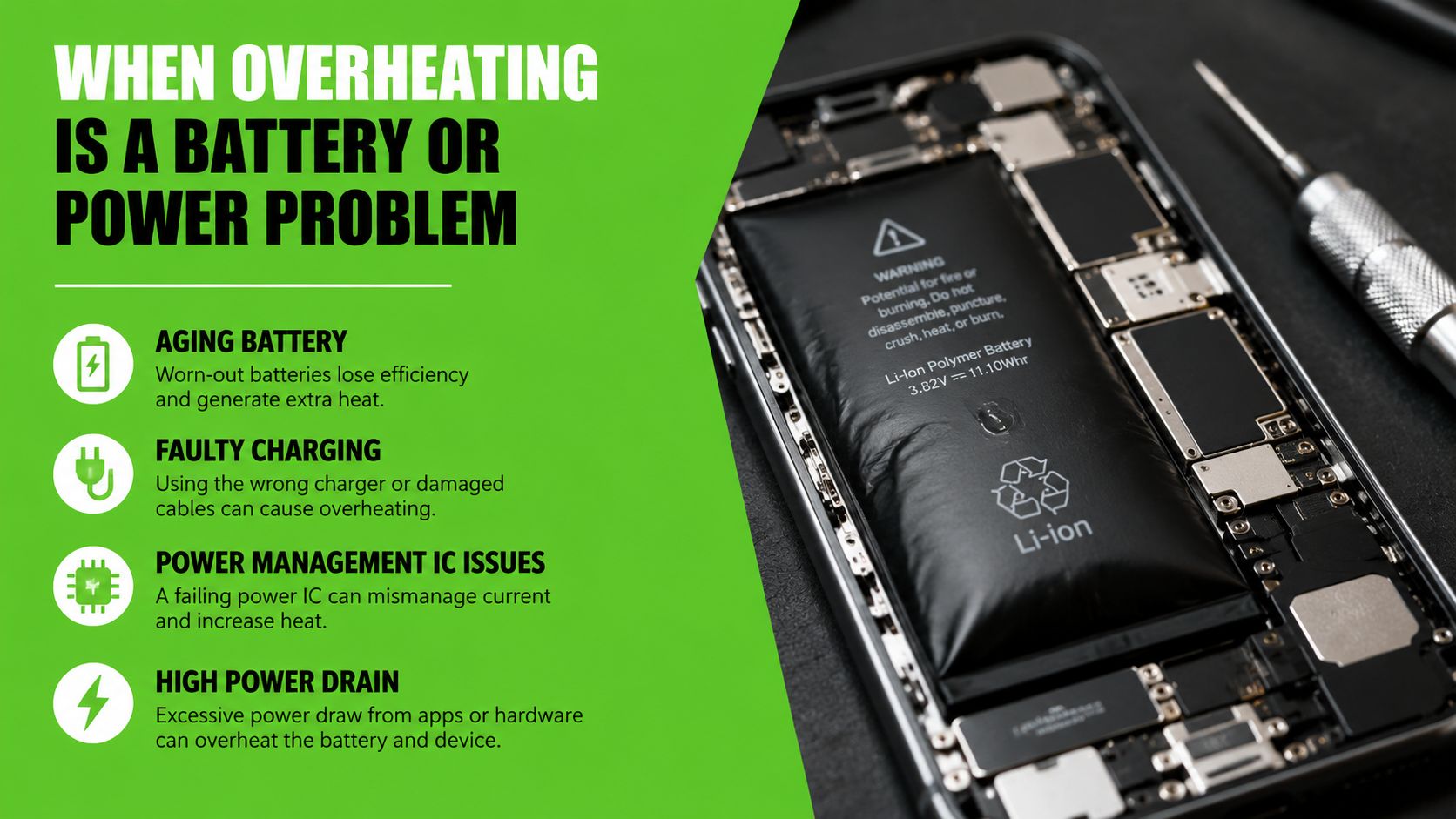
Battery health below 50% of original capacity may help explain overheating, and replacing the battery may improve the issue. Some laptops also cool down once they are unplugged after charging finishes, which points toward the charger, battery pack, or charging logic as part of the heat source. If your laptop is also failing to charge properly, see what to do when my laptop isn't charging before assuming the cooling hardware is at fault. This battery-and-power explanation matters because the laptop can look like it has a fan problem when the underlying issue is power delivery.
That matters even more on compact laptops, where the thermal design leaves less room for error than older chassis. The old assumption, dust plus paste plus fan, does not cover every case. If temperatures spike mainly while charging, or the machine still runs warm after the airways and fans are clean, the battery and power path deserve attention.
Check firmware and charging behavior
BIOS and firmware updates can change fan curves or power limits, which affects how the laptop handles heat under load. If the laptop started overheating after a BIOS change, the timing matters. Firmware can alter how aggressively the CPU boosts, how the fan ramps, or how power is distributed during charging.
A few symptoms make power-related heat more likely:
- Heat during charging, even when workloads are light.
- Heat that persists after cleaning, with no obvious airflow blockage.
- Battery wear signs, especially if runtime is poor and the pack is aging.
- Unusual behavior after firmware updates, including different fan behavior.
The practical move is simple. Unplug the charger once the battery is full, then check whether the heat drops. Test battery condition before assuming the cooling hardware failed. If the battery or power logic is the root cause, fan cleaning will not fix it.
Deciding Between DIY Fixes and Professional Laptop Repair
DIY makes sense when the problem is obvious and the fix is contained. If the laptop just needed vent cleaning, a change in power settings, or a background app shut down, you'll see it in the temperature re-test. If the machine still shuts down, keeps throttling, or sounds wrong after those steps, it's time to stop guessing and hand it off to a technician.
Signs that repair should move off your desk
Persistent shutdowns are the biggest warning sign. So are fan noise after cleaning, a battery that's swollen or clearly degraded, and repeated overheating under the same workload even after software cleanup and power tuning. If the fan spins but temperatures stay high, the problem can be a bad heatsink contact, a seized fan, or a deeper board-level issue that DIY won't catch.
Professional thermal service usually includes a full internal inspection, fan and heatsink cleaning, thermal paste replacement where needed, and diagnostics that check whether the issue is thermal, firmware-related, or tied to power delivery. That broader testing matters because a laptop can look fine from the outside while still failing under load.
For users deciding whether the machine is worth more repair work, this repair-versus-replacement guide can help frame the decision. The core question isn't whether you can perform one more tweak. It's whether the laptop is stable enough to trust.
Stop DIY when the machine keeps crossing safe temperature limits after the basic checks. That's the point where more tinkering usually delays the real fix instead of saving money.
If you rely on the laptop for work, downtime matters as much as parts cost. A proper repair bench can catch failed fans, bad battery behavior, and thermal contact problems faster than trial and error at home.
If your laptop is still running hot after the basic checks, bring it to We Fix PC Laptop for a hands-on diagnosis, thermal service, and straight answers about whether the problem is cooling, software, or power-related. Visit We Fix PC Laptop to get your machine inspected and back to stable temperatures without the guesswork.
- How to Fix a Water Damaged Laptop: Expert Tips
- Can a Broken Laptop Screen Be Repaired? Everything You Need to Know Before Replacing Your Device
- How to Find the Best Notebook Repair Shop: The 2026 Expert Guide
- Laptop Screen Repair vs. Buying a New Laptop: Which Saves You More Money in 2026?
- The Ultimate Guide to Laptop Repair: Restoring Performance and Data in 2026
- Comprehensive Laptop Screen Repair Guide: 2026 Professional Solutions
- Why Is My Laptop Suddenly Running Slow? 12 Problems a Computer Repair Technician Can Fix