.svg)
.svg)
.svg)




Computer Running Slow After Windows Update: Quick Fixes 2026
The call came in the same way it always does at the repair bench in Houston. The laptop was fine yesterday, the update finished overnight, and now the machine opens, thinks, and then drags through every click like it's wading through mud. That situation usually falls into one of three layers, Windows is still finishing housekeeping, a driver or setting got replaced, or the update has exposed a storage, memory, or cooling bottleneck that was already there.
Table of Contents
- When the Update Was the Last Good Thing That Happened
- Quick Wins Most People Skip
- Drivers Are Almost Always the Real Culprit
- Clean Boot and System File Checks
- Rolling Back the Update That Started It
- When the Real Problem Is the Hardware Underneath
- When to Stop Fixing and Bring It In
When the Update Was the Last Good Thing That Happened
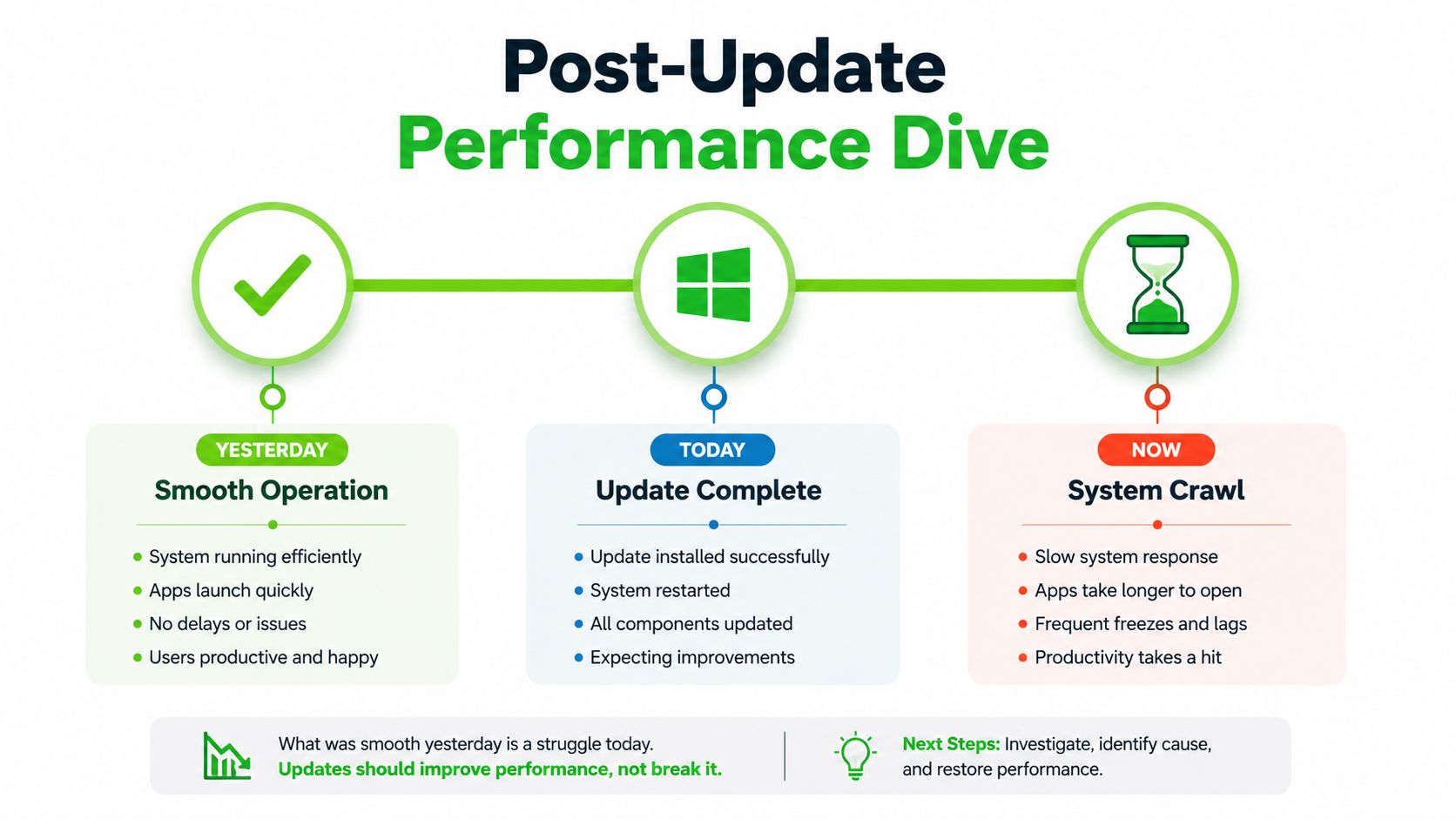
A lot of people open the lid the morning after Patch Tuesday and assume the update broke the machine outright. On the bench, that's rarely the first conclusion I make. If the system just came out of a major update, it may still be finishing background work like component installation, search reindexing, and housekeeping tasks, and that can keep CPU use at 10 to 25 percent continuously for 30 to 90 minutes, with the whole process often taking 1 to 3 hours on an SSD or 3 to 6 hours on an HDD according to one independent repair guide, with Microsoft's own slow-performance guidance pointing to similar background causes like startup apps, temporary files, optional driver updates, and malware scans (source).
The first mistake is judging it too fast
A true Restart matters here. Shut down with Fast Startup still enabled can leave part of the old servicing state hanging around, which makes the machine look more broken than it really is. Let it boot fully, then leave it alone for a while instead of opening ten apps and deciding it failed.
Bench rule: if the machine is still chewing disk or CPU right after sign-in, don't start ripping settings apart yet.
What I watch first is Task Manager, sorted by CPU, Disk, and Memory. If one of those stays high for a short period and then settles, that's a housekeeping problem. If the activity stays pinned and the system remains sluggish well beyond the usual post-update window, that's when the next layer starts to matter.
The timing gap also explains why two identical updates can feel totally different. On an SSD, the machine often recovers sooner. On an HDD, the same background work can feel awful because the drive is already slow at handling reindexing and servicing churn. That's why one laptop seems temporarily busy and another feels like it's dying.
Read the slowdown like a technician
If the slowdown is easing off, the update probably just needed time. If the machine is still laboring after a proper idle window, the problem may have moved from “Windows is busy” to “Windows is stuck.” That's the point where you stop assuming the update itself is guilty and start separating software activity from a deeper fault.
The best mental model is simple. First, check whether Windows is still finishing work. Second, check whether a driver, startup item, or update setting got reset. Third, ask whether the hardware underneath was already near its limit. That layered diagnosis keeps you from chasing the wrong fix for an hour and then making the situation worse.
Quick Wins Most People Skip
Users often reach for resets, rollbacks, or repair installs before checking the low-risk triage steps that clear a lot of post-update complaints. That's the wrong order when the slowdown may still be tied to background servicing, a startup list that grew too long, or a system drive that has run out of breathing room. On a bench in Houston, I start with the simple checks because they cost nothing, they do not risk data, and they often show whether the machine is merely busy or stuck.
Start with the system state, not the drama
The first question is plain, is Windows still finishing work, or has it settled into a real slowdown? If Task Manager shows Disk activity and the machine steadily calms down, let it finish the post-update housekeeping. If the system is still dragging after a proper Restart and a little idle time, move to the items that load at sign-in and the clutter sitting on the drive.
A lot of update complaints turn out to be a crowded startup list rather than a broken install. Disabling unnecessary Startup apps is a safe move because you are not removing software, you are only stopping it from grabbing resources at boot. That distinction matters when the machine was already close to its limits before the update landed.
Before you spend an afternoon chasing deeper faults, clear the easy storage pressure first. Temporary files, old update leftovers, and a cramped system drive can make a machine feel worse than it really is, especially if Storage Sense or Disk Cleanup has not been used in a while.
For a broader performance cleanup path, this internal guide on improving Windows speed in practical steps matches the same bench logic. It pairs well with a quick pass through business growth with Windows 11 if you are trying to separate normal post-update behavior from a machine that needs a tighter recovery plan.
A fast triage flow that does not waste your afternoon
- Open Task Manager first. Watch CPU, Disk, and Memory to see whether one process is spiking or whether the whole system is under load.
- Check Startup apps. Disable the obvious nonessential items that launch with Windows, especially the ones you do not actively use.
- Clear temporary files. Update churn often leaves behind junk that crowds the system drive and slows everything down.
- Run Storage Sense or Disk Cleanup. If the drive is nearly full, Windows has less room to breathe and more room to stumble.
If one of those steps helps, you have probably found a cheap fix and avoided a lot of unnecessary work. If nothing changes, stop repeating the same cleanup pass and move on to the driver layer, because that is where a lot of update-related slowdowns start showing up.
Drivers Are Almost Always the Real Culprit
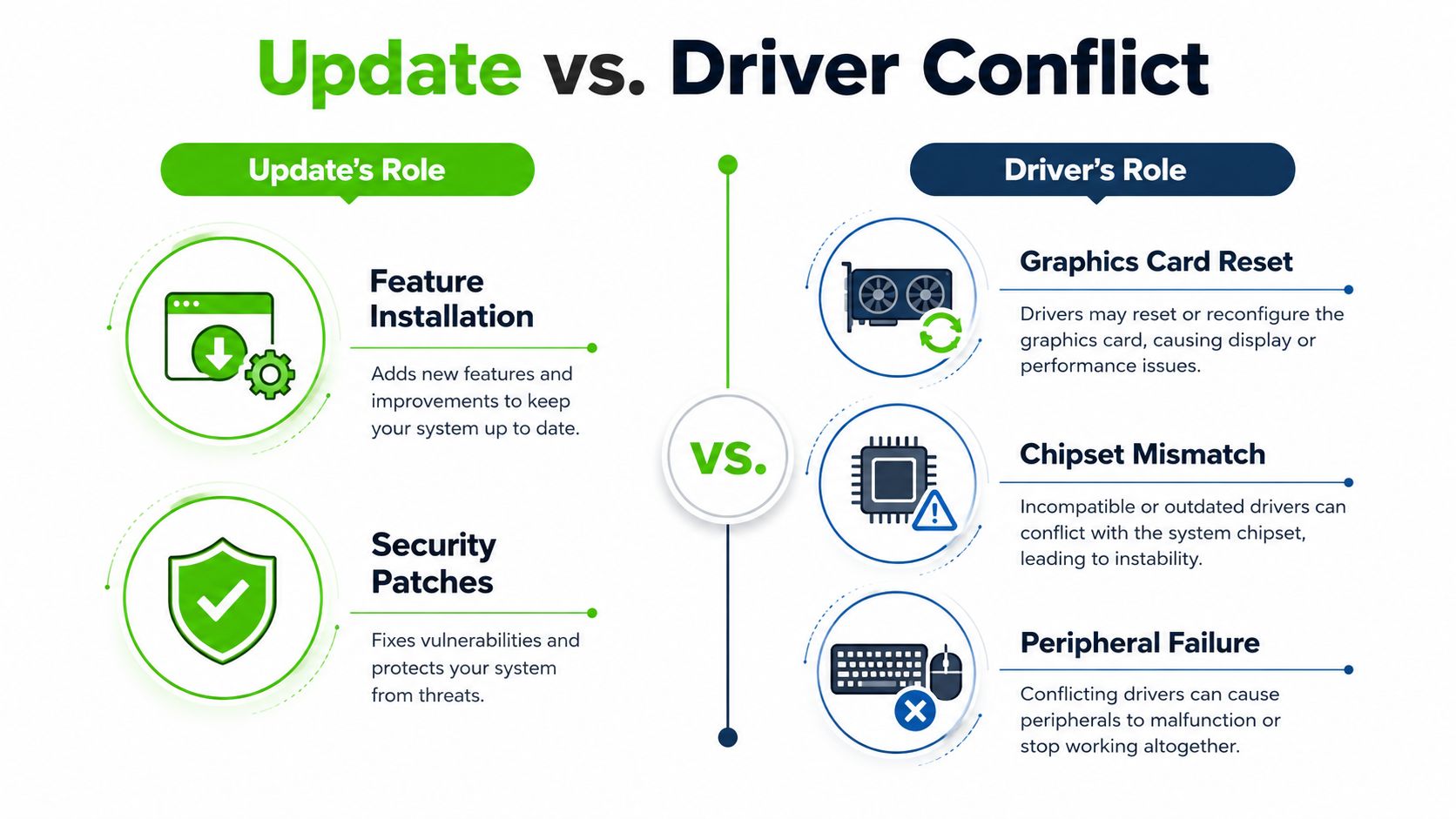
Feature updates and cumulative patches can replace, reset, or disturb drivers in ways that aren't obvious from the user side. On the bench, that's why a machine can feel normal one day and choppy the next without any new app install or obvious hardware failure. Chipset, storage, GPU, and network drivers are the first places I look, because Windows Update packages are not always the best fit for the specific hardware in that laptop or desktop.
Match the slowdown to the patch that started it
Open Update history and identify the exact update that lined up with the first bad day. If the slowdown started right after patching, that's not proof, but it's a strong clue. Microsoft support guidance and troubleshooting notes repeatedly point users toward optional driver updates, startup app review, temporary file cleanup, and, when needed, removing the most recent cumulative update if the timing is too clean to ignore.
That's also why OEM driver pages matter more than generic packages in many cases. The vendor's chipset, NVMe/storage, GPU, and network drivers are built for that board and that storage stack, while Windows Update may only offer a workable baseline. When performance falls apart after a patch, the cleanest fix is often to put the original hardware-specific driver set back in place.
If the machine was stable before the update and unstable right after it, don't guess. Check the update timeline first, then compare the driver set against the OEM release page.
A useful outside reference for administrators who want to see how event logs can support the diagnosis is this guide on triaging Windows Defender events. It's not a shortcut around driver work, but it can help confirm whether security scans or related background activity are part of the slowdown picture.
Know when rollback is justified
If the problem started immediately after the latest cumulative patch and the driver refresh doesn't help, uninstalling that update is a reasonable move. Independent troubleshooting guidance also notes that performance fixes often arrive in a follow-up patch within a few weeks, so the machine may stabilize once Microsoft ships the next servicing correction. Until then, the job is to isolate whether the regression came from the patch, the driver swap, or both.
For a quick visual summary, this update-versus-driver comparison helps keep the diagnosis straight.
Clean Boot and System File Checks
If the quick cleanup and driver check don't move the needle, the next layer is a clean boot plus file integrity repair. A clean boot strips away non-Microsoft startup interference, which tells you whether the slowdown is coming from Windows itself or from something third-party that collides with post-update servicing. That distinction matters, because a machine can feel broken only when a background service wakes up at login.
Strip the system down to the essentials
A clean boot is not the same thing as randomly disabling services. You isolate Microsoft services first, then remove third-party startup interference so the test is meaningful. If the computer suddenly feels normal in that stripped-down state, the slowdown isn't purely Windows, it's whatever loads in the normal boot path.
That's where sfc /scannow and DISM /Online /Cleanup-Image /RestoreHealth come in. The first checks for corrupted system files, and the second repairs the Windows image when component corruption is deeper. Both matter after an update because servicing churn can expose or aggravate file problems that weren't obvious before.
Read the results instead of staring at the screen
A clean boot that restores speed means you've found an interaction problem, not a dead motherboard. If SFC and DISM complete without errors, Windows files are probably structurally healthy and the hunt shifts back to drivers, startup items, or a bad service. If either command reports damage and repairs it, reboot and test again before you go any further.
Practical rule: don't run these repairs on a nearly full system drive if you can avoid it. Low free space makes every repair task harder than it needs to be.
If you want a second technical lens on how a slowdown can intersect with broader Windows stability problems, this internal reference on computer freezing causes and repair paths lines up with the same diagnosis logic. The goal isn't to pile on tools. It's to isolate whether the issue is structural, driver-related, or just a bad startup mix.
Rolling Back the Update That Started It
Sometimes the update really is the problem. When the slowdown starts right after patching and the cleaner fixes don't restore normal behavior, rollback becomes the most direct software-only route. The options are different, though, and users often mix them up.
Pick the rollback path that actually fits
Uninstalling the most recent cumulative update removes the latest patch while leaving your apps and files in place. If Windows created a restore point, rolling back to it can bring back system settings and drivers from before the change. An in-place repair install is the heavier option, it keeps personal files and apps intact, but it takes time and shouldn't be interrupted once it starts.
The catch is that rollback isn't always available forever. Update uninstall windows are limited, and restore points only help if the machine was set to create them in the first place. That's why a lot of users hit a dead end and assume they have no software options left, when really the timing window just closed.
Use rollback only after you've confirmed the pattern
If the laptop was stable before the update and the trouble started immediately afterward, rollback is worth trying before any deeper rebuild. If the update history shows a follow-up patch, that may be the cleaner fix, but if the machine is unusable right now, waiting isn't a plan. In that case, removing the bad update, rebooting, and then reapplying updates only after the system is stable is the more controlled move.
The important part is to understand what you're undoing. This is not a wipe. It's a targeted reversal of the last change that lines up with the problem, and that makes it one of the best options when Windows itself is the source of the slowdown.
When the Real Problem Is the Hardware Underneath
An update doesn't create weak hardware, it just makes it show up. An HDD that used to feel acceptable can become painfully obvious when Windows starts reindexing and servicing in the background. Limited RAM does the same thing under post-update memory pressure, and thermal throttling can turn a barely adequate machine into a crawl once the CPU stays busy long enough for the cooling system to fall behind.
Know the pattern behind the symptom
If the machine is slow mainly when the drive light is active, storage is a prime suspect. An HDD has a much harder time keeping up with update-driven background work than an SSD does. If the system starts fast and then bogs down as apps open, low memory headroom may be the issue. If performance gets worse after a few minutes of load, heat may be dragging the CPU back.
That's why a hardware fix isn't a random upgrade, it's a response to the workload Windows just exposed. An SSD upgrade, a RAM bump, or proper thermal service can be the correct answer when software fixes don't change the machine's behavior because the machine was already near its limit.
When hardware beats another software tweak
If the machine repeatedly slows down after updates, and the same symptoms come back after cleanup, driver work, and rollback, the underpowered component is probably the bottleneck. At that point, chasing more Windows settings just burns time. A healthier storage device or better thermal headroom usually gives you a more durable result than another round of registry poking or startup trimming.
For owners of hot-running notebooks, this internal guide on fixing overheating laptop problems matches the same bench logic. Heat and post-update slowdown often show up together because sustained servicing load makes an existing cooling problem impossible to ignore.
When to Stop Fixing and Bring It In
There's a point where more tinkering stops being troubleshooting and starts being risk. If SFC or DISM keep failing, if the latest update won't uninstall, if Windows won't boot normally, or if you hear new drive noises or see obvious storage errors during the process, stop there. Pushing harder can turn a repairable Windows issue into a data problem or a full reinstall.
The safe stop rule
A home user should hand it off when the machine is no longer predictable. If the slow system still boots but takes forever to respond, that's annoying but manageable. If it starts failing during repairs, breaks boot, or stops seeing the system drive correctly, the risk jumps fast. At that point, the priority shifts from “make it faster” to “don't lose what still works.”
The depot advantage is simple. A technician can test the update history, drivers, storage health, and thermal behavior on a bench without guessing through live use. That matters because the wrong move at home can waste a weekend, and in the worst case, make a fixable Windows install harder to recover.
A short decision tree for the afternoon
If the machine only feels slow right after sign-in, give it time and run the quick triage. If the slowdown follows one specific patch, check drivers and consider rollback. If the machine keeps failing repairs, won't boot, or points toward failing storage, stop chasing software. Hardware-level diagnosis is the better path when the symptoms outgrow a simple update problem.
For the caller who just wants the clean answer, the pattern is usually this. First, confirm whether Windows is still finishing work. Second, check drivers and startup load. Third, use clean boot and file repair. If none of that changes the machine, the update probably exposed a deeper storage, memory, or cooling issue that needs hands-on repair.
If your computer's still crawling after a Windows update, We Fix PC Laptop can take a proper bench-level look at it instead of guessing through more settings. Bring it to We Fix PC Laptop, and we'll help sort out whether the fix is a driver rollback, a Windows repair, or a hardware upgrade that gets the machine back to normal.