.svg)
.svg)
.svg)




Laptop Repair Near Me: How to Know When Your Laptop Needs Professional Repair
Long before a total component breakdown occurs, modern mobile computing devices exhibit subtle operational and physical warning indications. Device owners can take action before minor component stress develops into irreversible hardware degradation or permanent data loss by identifying indications like thermal throttling, localized chassis warmth, structural hinge movement, or persistent display abnormalities.
When physical hardware deterioration happens, moisture seeps into the enclosure, internal power delivery varies, or system crashes continue even after reinstalling the operating system, a laptop owner should stop troubleshooting at home and seek expert diagnostic examination. In order to properly identify component defects without jeopardizing board-level circuitry, professional hardware repair requires specialized diagnostic equipment like as digital multimeters, thermal imaging cameras, and micro-soldering stations.
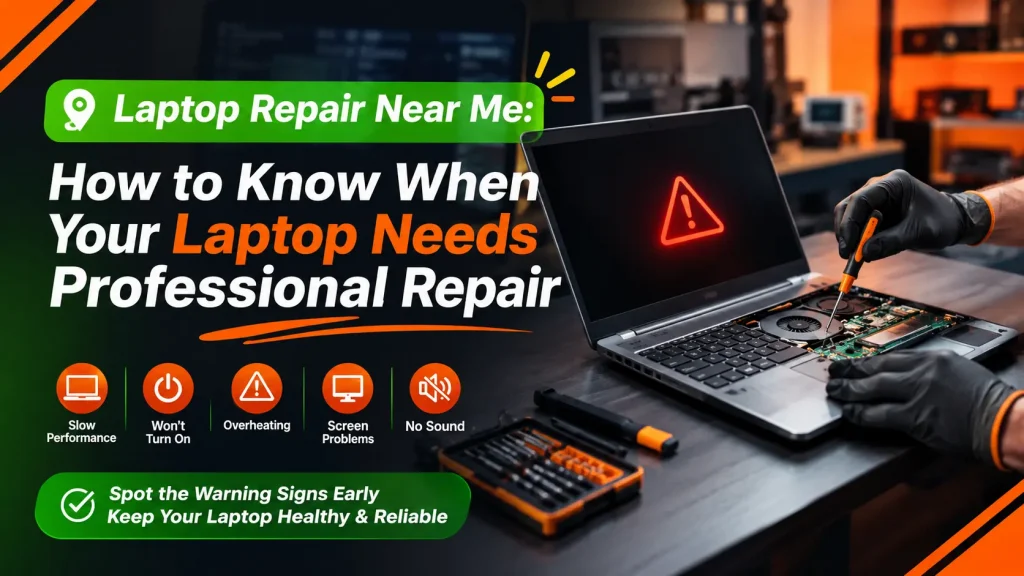
How Do I Know When My Laptop Needs Professional Repair?
When physical component damage, power supply instability, or severe thermal throttling preclude regular system performance even after performing basic operating system tests, a laptop has to be professionally repaired. Non-responsive power states, abrupt heat shutdowns, screen flickering brought on by worn display cables, bulging battery packs, broken power outlets, and strange mechanical drive grinding are all major warning indicators.
Maintaining operational integrity requires being able to distinguish between small software bugs and systemic hardware malfunctions. Hardware problems result in tangible symptoms like localized heat, burning smells, audio distortion, or structural casing displacement, whereas software bugs frequently follow recent program upgrades or virus exposure.
| Warning Sign Category | Primary Symptoms | Common Root Cause | Recommended Action |
| Power & Electrical | System unresponsive, LED indicators dark, sparks, or electrical smell | DC jack damage, motherboard short circuit, or failed power IC | Disconnect AC adapter immediately; cease attempts to power unit |
| Thermal & Acoustic | High-pitched fan noise, rapid chassis heating, sudden power cuts | Dust-choked heatsink fins, dried thermal paste, or fan bearing failure | Terminate high-load tasks; request internal thermal servicing |
| Display & Mechanical | Flickering lines, black blotches, screen dimness with faint image | Damaged eDP ribbon cable, cracked LCD panel, or failed backlight | Avoid adjusting display angle; perform external display testing |
| Data & Storage | Loud clicking/grinding, missing drive errors, severe lag | Mechanical hard drive head failure or corrupted solid-state memory | Perform immediate data backup; replace storage media |
| Chassis Integrity | Bulging lower panel, trackpad lifting away from upper housing | Lithium-ion battery cell gas expansion | Isolate device; arrange safe battery removal and replacement |
Where Can I Repair My Laptop Near Me?
Analyzing diagnostic techniques, hardware repair capabilities, communication openness, and data security rules is necessary when choosing a local technical service provider. Owners of computers should assess if a service provider does micro-soldering at the board level or just replaces whole modules.
Device owners must confirm that technicians follow stringent privacy regulations, use formal diagnostic procedures, give component warranties, and provide documented pricing estimates before part installation. Instead of replacing functional components, repair facilities need to have specialized testing equipment to precisely detect underlying problems. Individuals seeking specialized regional servicing can consult options such as professional laptop repair in Houston to obtain comprehensive diagnostic evaluations and hardware repairs.
Where to Fix a Laptop: Repair Shop vs. DIY Troubleshooting
Whether a technical issue stems from logical software layers or physical component architecture determines whether expert repair shop involvement or simple user troubleshooting is necessary.
Four logical steps make up a realistic decision framework: carry out simple, non-invasive software inspections, keep an eye out for physical warning indicators, protect critical personal information, and seek professional diagnosis when hardware instability continues. Users may usually safely assess logical software issues, such as browser hijacks, background application conflicts, or missing driver files. On the other hand, in order to avoid catastrophic system loss, physical component failure, electrical problems, chassis fractures, or water exposure require prompt expert care.
How to Repair a Laptop: What Can You Safely Try Yourself?
Basic maintenance procedures that don’t entail dismantling the chassis or opening sealed electrical enclosures are part of safe do-it-yourself troubleshooting. Owners of laptops without technical expertise can carry out a number of secure diagnostic procedures:
- Power Cycling: Turn off the device, unplug the AC charger, take out any unnecessary external accessories, depress the power button for 15 seconds to release static energy, and then turn on the power again.
- Peripheral Isolation: To ensure that external hardware is not interfering with the System Management Controller or BIOS POST execution, unplug external hard drives, display adapters, and USB devices.
- Safe Mode Diagnostic: To find out if software instability is caused by base system corruption or third-party application drivers, start the operating system in Safe Mode.
- Storage and Memory Scans: To assess the physical memory and storage health, use built-in diagnostic tools like Windows Memory Diagnostic or SMART drive health monitors.
- External Dust Removal: Without removing the bottom casing, use low-pressure compressed air to remove surface dust from outside vent grilles.
- Data Backup: While system stability allows, move important files to network drives or external cloud storage.
If interior access necessitates breaking warranty seals, handling bloated batteries, working close to exposed power circuitry, or addressing liquid exposure, all do-it-yourself attempts must cease right away.
Common Laptop Problems That Require Repair
Identifying common laptop problems that require repair allows owners to seek professional intervention before minor electrical or mechanical issues turn into permanent hardware failures.
Thermal management failure, power supply deterioration, display assembly failure, input/output port physical wear, and storage media corruption are the five main categories into which hardware problems often fall. Inadequate home repairs run the danger of creating irreparable electrical damage because contemporary ultraportable laptops directly combine CPU, memory, and power management components into a single system board.
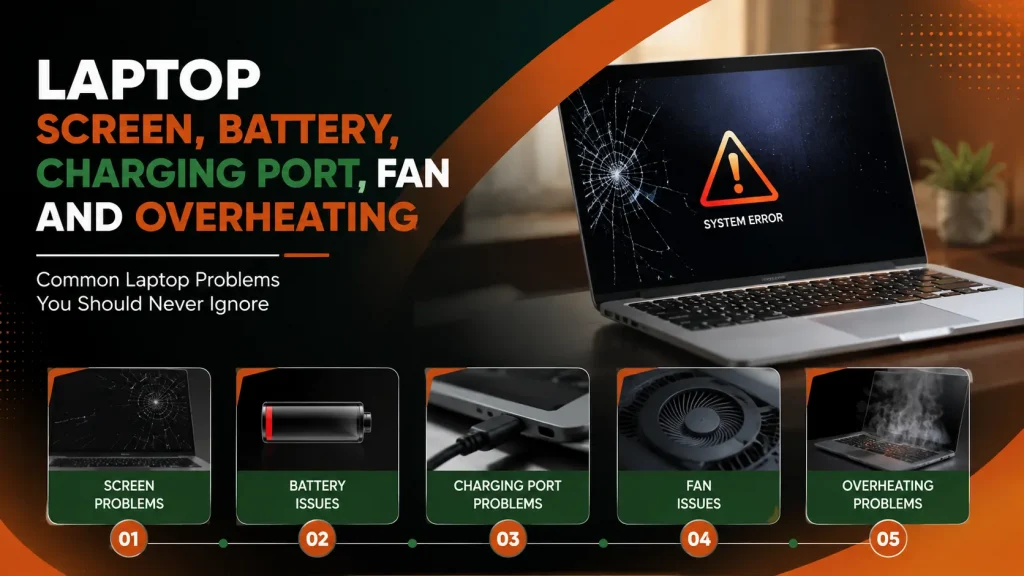
Laptop Screen, Battery, Charging Port, Fan and Overheating Problems
Screen Damage
Cracked glass panels, flashing horizontal lines, and complete image loss are examples of display defects. While black blotches or localized discoloration verify LCD crystal rupture, visual abnormalities that change as the display lid angle is adjusted point to flex cable fractures inside the structural hinge mechanism. By connecting an external monitor, you may determine if the problem is with the internal graphics processor or the built-in panel. Complete replacement procedures are detailed through dedicated Laptop Screen Repair resources.
Battery Problems
After 300 to 500 charge cycles, lithium-ion batteries undergo chemical deterioration, which can lead to abrupt shutdowns, inconsistent charge percentages, or a shorter battery life. Aging cells may physically expand due to gas accumulation, putting tremendous pressure on internal parts and raising the trackpad. Detailed cell care information is available within specialized laptop battery-related articles.
Charging Port Problems
Broken solder joints or damaged center pins within DC barrel jacks and USB-C ports are indicated by wobbly power connections, sporadic charging lights, or localized heat near power sockets. Continued use puts the motherboard at danger for electrical arcing and trace damage, necessitating micro-soldering repairs.
Fan Problems
Precision bearings in cooling fans collect dust from the air and deteriorate with time, causing high-pitched whining, grinding, or fan stop errors. Reduced air volume from impaired fan operation causes fast component thermal degradation. Comprehensive fan restoration workflows are covered in dedicated laptop fan articles.
Overheating
Central processors rapidly approach thermal limitations over 90°C when thermal paste deteriorates or dust obstructs heatsink cooling fins. In order to avoid CPU failure, the system then begins abrupt power-offs or reduces clock rates (thermal throttling). Detailed thermal remediation strategies are outlined in laptop overheating articles.
What Should I Do If My Laptop Has Water Damage?
Liquid contact with active micro-circuitry causes rapid galvanic corrosion, short circuits, and severe component destruction.
When liquid enters a laptop enclosure:
- Immediately force the system off by holding down the power button.
- Disconnect the AC power adapter and unplug all connected peripherals.
- Invert the device into an open, downward-facing “tent” configuration over an absorbent towel to drain fluid away from the motherboard assembly.
- Refrain from applying external heat sources like hairdryers, which force liquid deeper into internal components, and do not attempt to turn the device back on.
- Seek immediate professional evaluation. Professional technicians utilize anhydrous isopropyl alcohol flushes and ultrasonic cleaning tanks to remove mineral deposits before corrosion permanently destroys copper circuit traces. Consult specialized water-damaged laptop articles for full emergency procedures.
Laptop Repair or Replacement: Which Option Makes More Sense?
Determining whether your laptop needs repair or replacement requires evaluating equipment age, replacement costs, system performance needs, and structural upgradeability.
Generally speaking, replacement is typically the more cost-effective option if the entire cost of hardware repair surpasses 50% of the price of a similar new system. However, a device’s service life may be cost-effectively increased by replacing individual components, such as a solid-state drive or battery.
| Assessment Criterion | Favors Hardware Repair | Favors Device Replacement |
| Device Age Profile | Under 3 to 4 years old | Exceeds 5 to 6 years old |
| Fault Categorization | Isolated modular failure (battery, drive, display panel) | Widespread board corruption or failed CPU/GPU |
| Economic Ratio | Repair estimate is below 30–40% of replacement value | Repair estimate exceeds 50% of replacement value |
| Performance Capability | Meets current software operating requirements | Insufficient system memory or unsupported CPU architecture |
For further technical and financial decision frameworks, consult specialized laptop repair vs. replacement articles.
How to Find a Reliable Notebook Repair Shop
When finding a reliable notebook repair shop, equipment owners should confirm that the service facility employs qualified technicians and maintains transparent operational standards.
A reliable repair facility should employ transparent, itemized pricing structures, present documented diagnostic results prior to beginning work, offer formal guarantees on installed parts, and uphold secure data security procedures. Clients should stay away from establishments that demand non-refundable payment prior to performing diagnostics or that do not provide clear instructions for replacing hardware.
What Happens During a Professional Laptop Repair?
Professional technical repair follows a controlled 7-step diagnostic and remediation process designed to guarantee safety and performance:
- Intake Logging: Technicians record external chassis conditions, serial numbers, peripheral attachments, and customer-reported issues.
- Diagnostic Analysis: Hardware diagnostic suites, thermal sensors, and circuit multimeters isolate primary and secondary component faults.
- Written Recommendation: The service facility delivers an itemized cost estimate detailing required hardware parts and labor charges.
- Client Approval: The customer reviews the diagnostic report and approves the proposed repair plan.
- Component Servicing: Technicians complete module replacements, thermal compound reapplications, or board-level micro-soldering.
- Stress Testing: The repaired laptop undergoes thermal stress testing, memory diagnostics, and power cycle checks to confirm long-term system stability.
- Final Handover: The restored device is returned alongside complete service records and applicable parts warranty coverage.
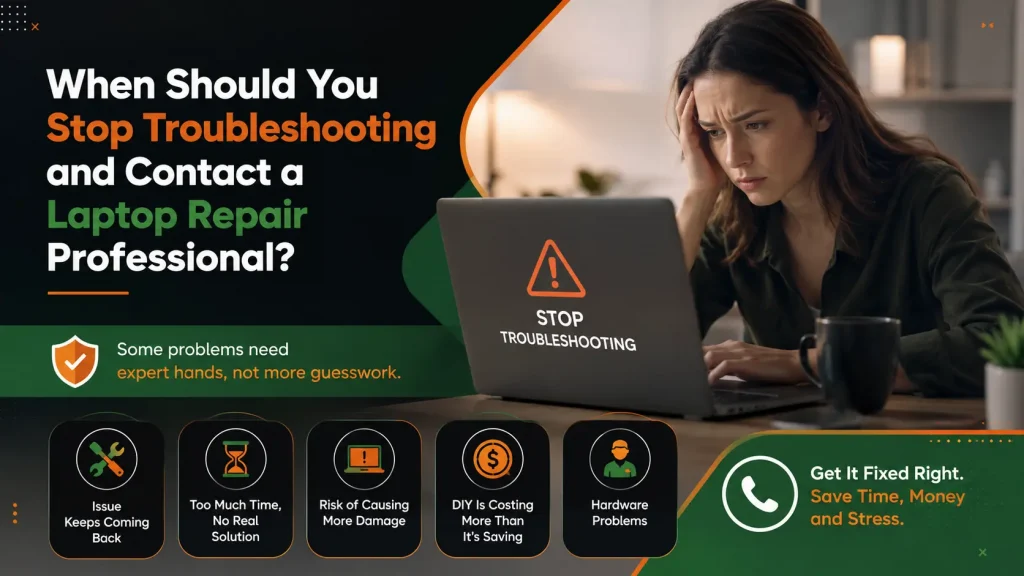
When Should You Stop Troubleshooting and Contact a Laptop Repair Professional?
Immediate professional technical intervention is required whenever home troubleshooting risks causing personal injury, irreversible data loss, or cascading electrical damage. Laptop owners should seek professional laptop repair services or dedicated professional laptop repair help when encountering the following critical conditions:
- Visible sparks, electrical popping sounds, or persistent burning odors coming from the chassis.
- Liquid spills on the keyboard assembly, touch pad, or cooling intake vents.
- Visible chassis swelling or bulging around the battery compartment.
- Metallic grinding or clicking noises coming from mechanical storage drives.
- Persistent Blue Screen of Death (BSOD) errors that occur immediately during hardware boot cycles.
- Physical looseness, thermal discoloration, or visible pin damage inside charging ports.
Frequently Asked Questions About Laptop Repair
Where can I repair my laptop?
Laptops can be serviced at authorized manufacturer service centers, reputable independent repair shops, or specialized micro-electronics facilities. Equipment owners should select centers offering transparent diagnostics and component warranties.
Where can I fix my laptop?
For hardware failures, physical damage, or liquid exposure, take the unit to a local technical repair facility equipped with bench diagnostic tooling. Logical software issues can often be addressed using built-in system restoration utilities.
How do I know if my laptop needs repair?
A laptop requires professional servicing when it exhibits physical damage, fails to power on, suffers sudden thermal shutdowns, produces loud fan noise, or experiences recurring system crashes past basic resets.
Is it worth repairing an old laptop?
Repairing an older laptop is worthwhile if the fix involves simple modular replacements like a battery or solid-state drive, and the total cost remains under 50% of buying a new system.
Can a laptop that won’t turn on be repaired?
Yes. Non-powering laptops are routinely repaired by replacing damaged power jack ports, blown circuit capacitors, failed battery packs, or corrupted BIOS chips.
How long does laptop repair usually take?
Standard modular repairs like battery, drive, or display installations usually take 24 to 48 hours, whereas complex motherboard diagnostics and liquid damage cleanings take 3 to 5 business days.
Should I repair or replace my laptop?
Choose repair if the device is under four years old and repair costs are low. Choose replacement if the laptop suffers from widespread board damage or performance is inadequate for current software demands.
Can water-damaged laptops be repaired?
Yes, provided the device is powered off immediately and brought to a repair facility for professional ultrasonic cleaning and board drying before corrosion destroys circuit traces.
What should I do before taking my laptop to a repair shop?
Back up essential personal files to a cloud platform or external storage, log out of sensitive accounts, remove external USB adapters, and document the device serial number.
Conclusion
Laptops give clear warning signs long before hardware components fail completely. By recognizing symptoms early, such as rising internal temperatures, swollen casings, abnormal fan noise, or persistent system crashes,device owners can take action before minor issues turn into permanent hardware failure. While basic software updates and file scans are safe to perform at home, physical damage, fluid exposure, and power delivery issues require specialized equipment and professional technicians. Prompt professional diagnostics protect personal data, prevent cascading circuit damage, and keep computing hardware running safely and efficiently over time.
To schedule a professional diagnostic check or receive expert support for hardware issues, explore comprehensive Laptop Repair Services to evaluate your device’s repair needs.
- How to Fix an Overheating Laptop: A Complete Repair Guide
- How to Fix a Water Damaged Laptop: Expert Tips
- Can a Broken Laptop Screen Be Repaired? Everything You Need to Know Before Replacing Your Device
- How to Find the Best Notebook Repair Shop: The 2026 Expert Guide
- Laptop Screen Repair vs. Buying a New Laptop: Which Saves You More Money in 2026?
- The Ultimate Guide to Laptop Repair: Restoring Performance and Data in 2026
- Comprehensive Laptop Screen Repair Guide: 2026 Professional Solutions