.svg)
.svg)
.svg)




Dell Laptop Screen Broken? What to Do Right Now
You close the lid after a normal workday and notice a dark crack running through the Dell logo. Or the laptop powers on, the fan spins, and the display stays black. If you searched “Dell laptop screen broken” because that is exactly what you're seeing, don't order the first replacement panel that looks compatible. The next few minutes should answer three practical questions: is the laptop itself still working, is the damage limited to the screen assembly, and is this a sensible DIY repair or a job for a technician?
Dell treats cracked or broken LCD screens as a common accidental-damage issue and maintains dedicated repair and diagnostic workflows for notebooks, tablets, and phones, including LCD self-tests and display troubleshooting materials (Dell's current cracked-screen repair guidance). That doesn't mean every black display needs a new panel. It means you need a controlled diagnosis before spending money.
Table of Contents
- The First Five Minutes With a Broken Dell Screen
- Reading the Symptoms Before You Spend Any Money
- Proving the Panel Is Really the Problem
- Your Three Real Options When the Screen Has to Go
- What a Clean Screen Replacement Actually Looks Like
- What Screen Replacement Really Costs in 2026
- The Local Houston Path Through We Fix PC Laptop
The First Five Minutes With a Broken Dell Screen
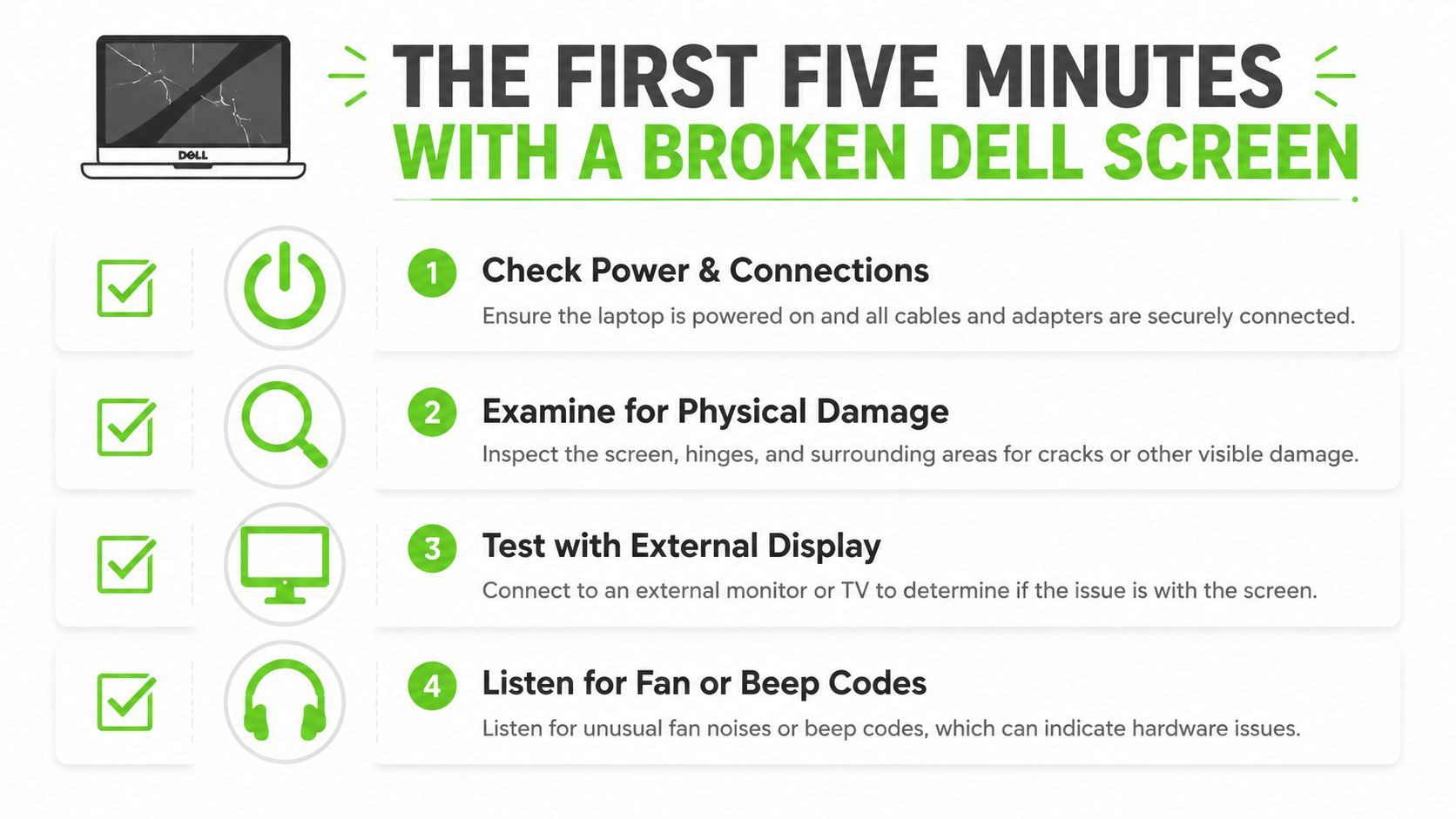
Start by making the laptop safe to handle. Unplug the charger, remove USB accessories, and stop pressing on the damaged glass. If liquid was involved, don't keep powering the machine on to “see if it works.” A cracked panel can expose sharp edges, while liquid can turn a display problem into a board-level failure.
Next, look closely without flexing the lid. Note whether the crack is visible on the surface, whether the image appears behind it, and whether the backlight produces a faint glow. Listen for the fan, startup sounds, or Windows notification sounds. Those details tell a technician whether the computer is booting normally even though the display isn't usable.
The fastest separating test is an external monitor. Connect a known-good display through HDMI or a compatible USB-C video port, then use the Dell display-output shortcut if needed. If the external monitor shows a normal desktop, the motherboard and graphics path are likely functioning, leaving the LCD panel, display cable, or backlight as the likely fault. If neither display works, the diagnosis needs to include power, memory, firmware, graphics, and the system board.
Quick Symptom-to-Cause Map
| What You See | Most Likely Cause | Urgency |
|---|---|---|
| Spider-web crack with colored blotches | Damaged LCD panel | High, avoid pressure on the lid |
| Image changes when the lid moves | Loose or damaged display cable | Medium to high |
| Faint image visible with a flashlight | Backlight or panel power problem | Medium |
| Clean image on an external monitor | LCD assembly, cable, or backlight | Medium |
| No image anywhere, no startup signs | Power, board, firmware, or deeper hardware fault | High |
| Lines or black patches that stay in one place | Internal panel damage | Medium to high |
Before calling a shop, write down the Dell model number, whether the laptop boots, whether an external display works, whether the damage followed a drop or liquid spill, and whether the image changes as the lid moves. Back up important files if you can access the machine remotely or through an external screen. The purpose of this first check isn't to complete the repair. It's to prevent data loss and an incorrect parts order.
Reading the Symptoms Before You Spend Any Money
A broken display gives useful clues. A crack with ink-like black patches usually means the LCD layers are damaged internally, even if the glass surface looks only slightly marked. Pressing the patch won't restore the image and can spread the damage across the panel.
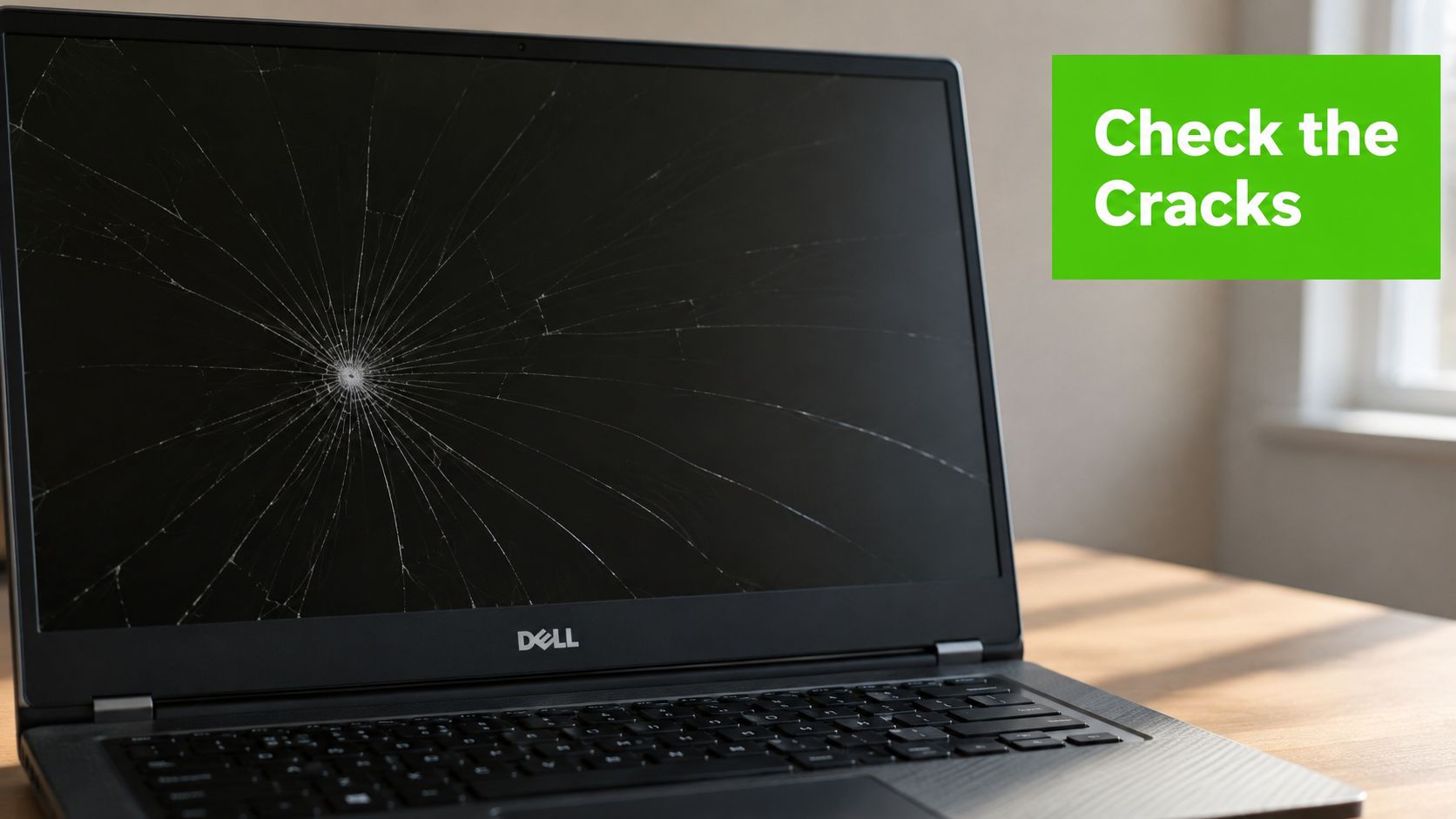
A single vertical or horizontal line can have more than one cause. A fixed line that appears immediately at startup often points toward panel electronics or a failed internal tab connection. Lines that appear or disappear when the lid angle changes make the eDP or LVDS cable more suspicious. A flickering XPS display, for example, may need cable inspection before anyone orders a screen, particularly if the external monitor remains stable.
Dark zones deserve a careful distinction. If part of the image is visible but one area is consistently black, the panel may have internal damage. If the entire image is very dim and becomes easier to see under a flashlight, the backlight circuit or panel assembly is a stronger possibility. Software can cause brightness and driver behavior, but physical patterns that remain across startup screens usually aren't fixed by reinstalling Windows.
What the Pattern Usually Tells You
- A visible crack with spreading black areas: Treat the panel as failed. The glass and the image-producing layers are integrated closely enough that a panel replacement is normally the practical repair.
- Flicker tied to lid movement: Have the cable and hinge area checked first. A pinched, partially seated, or worn cable can imitate a bad LCD.
- A black screen with fan noise: The computer may be booting normally. External-display testing and Dell's built-in LCD test can separate a display fault from a startup failure.
- A black screen with no fan, lights, or sound: Don't assume the screen is the problem. Check power and charger behavior before ordering display parts.
Dell display quality data also shows why persistent pixel defects shouldn't be dismissed as cosmetic. In a dataset of 4,676 Dell screens, 50.19% had zero dead pixels, while the remainder fell into several dead-pixel ranges, including 24.10% with 1–2 dead pixels and 15.48% with 11 or more (Dell screen dead-pixel statistics). The same dataset records 11 or more dead pixels on 9.85% of new screens and 22.36% of screens older than five years, so age can be a useful risk factor when deciding whether an older machine deserves a full display repair.
Proving the Panel Is Really the Problem
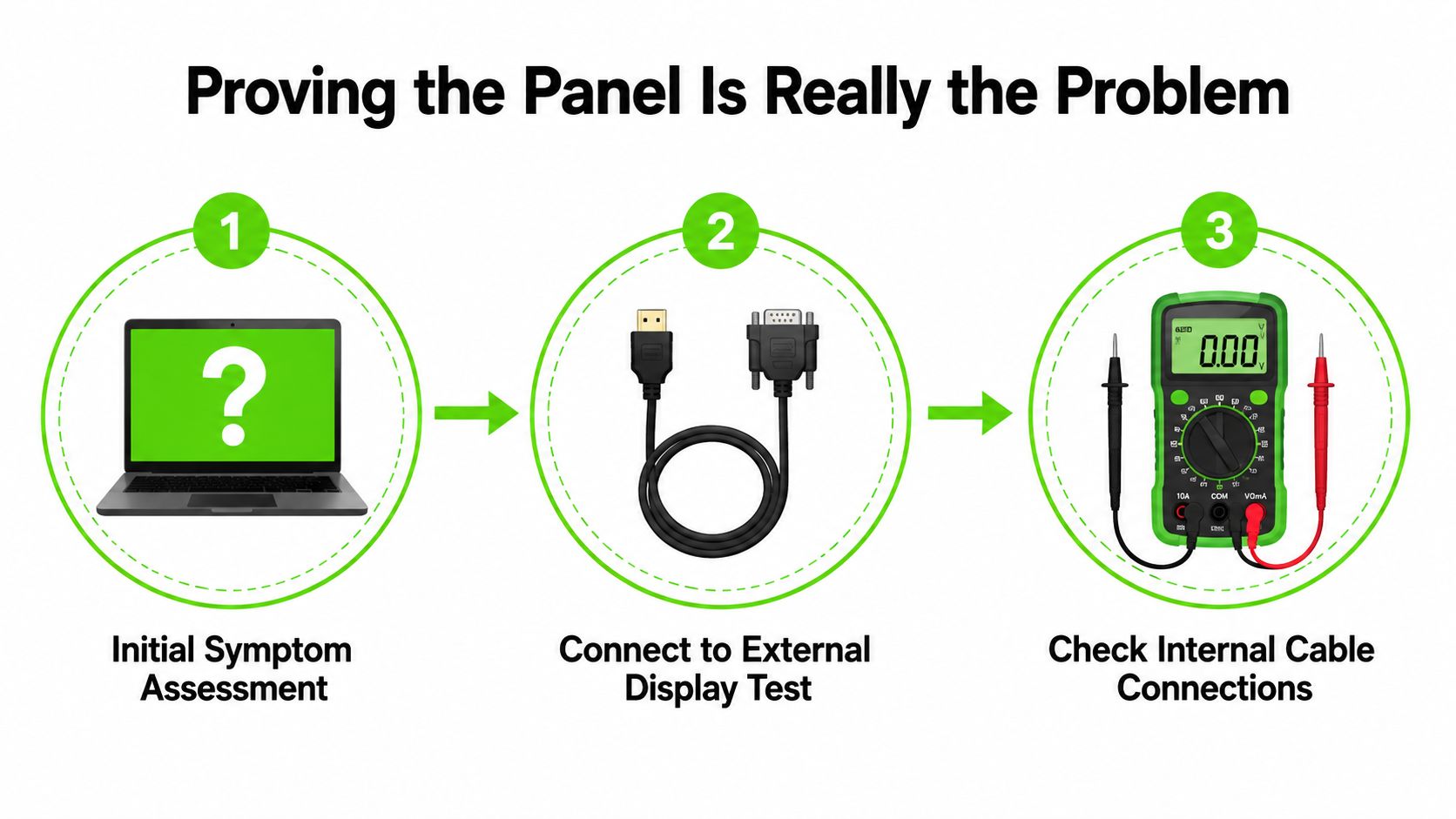
A replacement panel should be ordered only after the fault has been narrowed down. Connect the Dell to a known-good monitor using HDMI or a USB-C port that supports video. Power it on, wait for the system to boot, and switch the output if the image doesn't appear automatically.
A clean external image is strong evidence that the operating system, graphics processor, and mainboard display path are working. The remaining suspects are the internal LCD, the video cable, the connector, or the backlight. No external image doesn't prove the panel is bad, because the laptop may have a separate boot or graphics issue.
Dell's LCD self-test adds another useful check. On many Dell laptops, hold the D key while pressing the power button. Release the key when the screen begins its test. The panel should cycle through solid colors independently of Windows, which helps reveal whether the LCD and its backlight can illuminate at all. Model behavior can vary, so use Dell's model-specific support documentation if the shortcut doesn't respond.
Two-Test Diagnostic Workflow
| Test | How to Run It | What It Proves |
|---|---|---|
| External display | Connect HDMI or compatible USB-C video to a working monitor | Whether the computer can produce a normal external image |
| Dell LCD self-test | Hold D while powering on, then observe the color cycle | Whether the internal panel and backlight can operate independently of Windows |
If the external monitor works and the LCD self-test shows colors, inspect the internal cable and its seating before condemning the panel. If the self-test stays dark but the external monitor works, the internal display assembly remains the leading suspect. A BIOS or graphics-driver update is worth trying only when the symptom is intermittent, software-dependent, or absent from the preboot environment. It won't repair cracked glass, dead panel electronics, or a torn cable.
For broader troubleshooting references, see these Dell display-issue repair resources. A technician should still disconnect power and the internal battery before opening the lid, because a careless cable maneuver can damage the connector or short the display circuit.
Your Three Real Options When the Screen Has to Go
Once the panel is confirmed defective, the decision is less about finding a single “best” repair and more about matching the repair path to your deadline, budget, and tolerance for risk.
DIY replacement
DIY makes sense when you can identify the exact Dell model and panel specification, work on a clean table, and accept that the new part could be wrong or damaged during installation. You'll need a small Phillips screwdriver, plastic pry tools, and a safe way to disconnect the battery. The apparent savings can disappear if the connector, resolution, bracket position, or cable orientation doesn't match.
A student who needs a spare machine for coursework may accept that risk if the laptop is older and the part is easy to source. A first-time repairer should also budget time for careful disassembly, not just the advertised installation time.
Dell mail-in service
Manufacturer service is attractive when warranty coverage, authorized parts, or formal support matters most. It can reduce uncertainty around part compatibility, but shipping adds handling time and removes the laptop from your desk while the repair is processed. Outside warranty, the quoted price may also reflect a complete assembly rather than the cheapest compatible panel.
Local depot repair
A local depot sits between those choices. You can speak with a technician, receive a diagnosis before approving the work, and avoid packing the laptop for shipment. It's especially practical for a remote worker with a narrow window between meetings or a small business that needs several devices assessed without sending them into separate mail-in cycles.
Practical rule: Choose DIY for control, manufacturer service for formal coverage, and local depot repair when time, diagnosis, and communication matter more than doing the labor yourself.
Ask every provider whether the estimate includes the panel, labor, diagnostics, taxes, bezel or hinge work, and post-repair testing. “Screen price” and “finished repair price” aren't interchangeable. A clear written scope is more useful than a low headline number.
What a Clean Screen Replacement Actually Looks Like
A proper replacement is a controlled hardware procedure, not a matter of popping off the glass and snapping in another one. The technician powers down the Dell, disconnects the charger, and isolates the battery before working near the display cable. That removes power from the circuit while the eDP or LVDS connector is handled.
The bezel comes off with plastic pry tools, not a metal screwdriver. Screws, adhesive strips, hinge covers, and bezel clips are easy to damage when someone rushes. Once the panel is exposed, the video cable is released from its locking mechanism and the old display is separated from its brackets or mounting points.
Part matching comes before disassembly
The dangerous mismatch usually isn't the glass. It's the specification. Confirm all of the following against the original part or the Dell service information:
- Size and resolution: A panel that physically fits may still produce the wrong image or fail to match the system configuration.
- Connector type: eDP and LVDS are not interchangeable, and connector positions can differ between otherwise similar panels.
- Bracket placement: Side brackets may need to transfer from the old panel, with orientation preserved.
- Cable direction: A cable that reaches the connector can still be routed or seated incorrectly.
- Touch and finish: Touch, OLED, matte, glossy, and brightness characteristics can change the required assembly.
After the replacement cable is connected, power the laptop on before reinstalling the bezel. Confirm the image, brightness, resolution, camera area, and lid movement. The test-before-final-assembly workflow catches a dead replacement panel, a loose connector, or an upside-down bracket while access is still easy.
A repair guide describes a full replacement taking about 45 minutes when the correct part is available, but that assumes orderly work and a compatible component (laptop screen replacement steps and cable-handling guidance). A first-time DIY repairer should plan for substantially more time, because identifying clips, documenting screw locations, and correcting a cable issue can take longer than the swap itself.
The cleanest repair is the one that tests the image before the last clip is pressed into place.
What Screen Replacement Really Costs in 2026
A single generic Dell screen price is misleading. Inspiron, Latitude, and XPS systems use different panel types, mounting methods, and display assemblies. Thin bezels, touch layers, OLED panels, and InfinityEdge designs can turn a panel-only job into an assembly replacement.
Independent UK repair pricing published in 2026 lists some Inspiron screens at £89.95 to £159.95, Latitude screens at £104.95 to £199.95, and XPS InfinityEdge OLED or touch screens at £209.95 to £229.95 (2026 Dell laptop repair pricing by model line). The same reference gives India examples of FHD replacement pricing at ₹3,500 to ₹6,500, with OLED and touch panels priced much higher. These are market examples, not a universal Houston quote.
Realistic 2026 Cost Ranges by Dell Line
| Dell Line | Typical Panel Cost | Typical Total Repair Cost | Timeline |
|---|---|---|---|
| Inspiron | £89.95 to £159.95 in cited UK examples | Depends on labor, diagnostics, taxes, and whether an assembly is required | Same-day may be possible when the part is in stock |
| Latitude | £104.95 to £199.95 in cited UK examples | Depends on panel specification and labor | Often faster locally when the exact business-model part is available |
| XPS InfinityEdge OLED or touch | £209.95 to £229.95 in cited UK examples | Can rise when the display assembly is integrated | Allow extra sourcing time if the assembly is specialized |
The table's panel figures come from the cited UK pricing source. A shop's total estimate should separately identify parts, labor, diagnostic work, taxes, and any bezel or hinge repair. That's how you compare quotes without mistaking a bare panel price for the final bill.
The cheapest quote can be the wrong question on an XPS. A low-cost panel may not match the mounting hardware, touch layer, cable, color characteristics, or integrated lid assembly. For a newer premium Dell, ask whether the quote is for a panel only or the complete display assembly, and whether the technician will test the replacement before sealing the lid.
For comparison with another brand's pricing format, see this laptop screen change price reference, but don't use it as a substitute for a model-specific Dell estimate. The serviceable choice depends on the laptop's age, condition, display type, and the cost of replacing the machine altogether.
The Local Houston Path Through We Fix PC Laptop
Houston readers who don't want to ship a damaged Dell can use a local depot workflow. We Fix PC Laptop operates from 1301 Waugh Dr., Suite 200, Houston, TX 77019, where technicians can inspect the computer, confirm whether the panel is at fault, and provide an estimate before replacement work begins.
The useful distinction is in-house handling. A technician can connect an external display, run display diagnostics, inspect the cable and hinge area, and identify whether the repair needs a panel, cable, bezel, hinge, or complete assembly. When the correct part is already in working inventory, same-day turnaround is available for many repairs, although a specialized XPS or touch assembly may require sourcing first.
What to bring and what to ask
- Back up first: Copy important files before drop-off if the laptop still works through its internal or external display.
- Record the symptom: Note whether the image changes with lid movement, whether sound continues, and whether an external monitor works.
- Bring the charger: The technician can reproduce the problem under normal power conditions.
- Request the diagnosis in writing: Ask whether the fault is the panel, cable, backlight, motherboard, or a complete assembly.
- Confirm the estimate scope: Check that parts, labor, diagnostics, taxes, and testing are identified separately.
- Ask about timing: Same-day service depends on the exact Dell part being available.
The shop supports laptop screen replacement and display diagnosis across brands, with communication available by phone, text, or email. You can review its Houston laptop screen repair service before deciding whether local depot service fits your situation.
If your Dell laptop screen is broken, bring the model number, charger, and a description of what happened to We Fix PC Laptop at the Waugh Drive depot for an in-house diagnosis and a clear repair estimate. Visit We Fix PC Laptop to arrange local screen repair, ask about same-day availability, and avoid shipping a damaged laptop when the right part is available in Houston.