.svg)
.svg)
.svg)




How to Set Up a Small Business Network: A Complete Guide
Your office has outgrown the router sitting under a desk. Video calls freeze, the printer disappears from half the staff, someone says the guest Wi-Fi is “probably fine,” and nobody can explain which cable goes where or why the accounting laptop keeps dropping off the network. That's usually the moment people start shopping for hardware when the problem is that the network was never planned as a business system in the first place.
A solid small business network setup starts with the boring decisions most guides skip. Count every device, map who needs wired access and who can live on Wi-Fi, segment what should never touch what, and test before the office depends on it. Done right, the network stops being a daily interruption and starts acting like a stable operating asset.
Table of Contents
- Why Most Small Business Networks Fail Before They Start
- Counting Devices and Planning Your Network Budget
- Choosing Between Wired Ethernet and Wi-Fi for Each Role
- Building the Physical Network From Router to Endpoints
- Designing Security and Network Segmentation From Day One
- Testing and Validating Before You Go Live
- Common Network Setup Mistakes and How to Avoid Them
Why Most Small Business Networks Fail Before They Start
A 12-person office can look fine on a spreadsheet and still fall apart in practice. The Wi-Fi drops when two people start video calls, the printer keeps showing as “offline,” and nobody can tell whether the router, the access point, or the switch is the weak link. That kind of failure usually starts with skipped planning, not bad hardware.
I see the same mistake over and over. Someone buys a router, adds a couple of access points, plugs everything in, and expects the office to sort itself out. It never does. If you never counted endpoints or mapped where they sit, you are guessing about coverage, port counts, and bandwidth from day one.
Practical rule: if you can't draw the network on one page, you will struggle to support it when something breaks.
A small business network is a business asset with real operational risk. Downtime for small businesses has been benchmarked at $137 to $427 per minute in the cited guidance, which means a 3-hour outage can reach roughly $24,660 to $76,860 in lost revenue or productivity, depending on the minute rate used (Metfl Services). That is why design decisions matter before you buy gear, not after the office is already live. A flat, undocumented setup also makes security problems harder to contain, especially when guest traffic, employee devices, and IoT gear all share the same path.
The other failure is complexity without visibility. In mixed-device offices, memory is a bad inventory system. You need to know what is connected, what belongs on wired Ethernet, what can live on Wi-Fi, and what should be isolated on its own segment. That is also where a planned buying decision matters, especially if you are comparing ownership against short-term flexibility, as covered in this guide to computer rental for business scalability and security. A network needs an inventory, a topology, and a go-live checklist, not just a shopping list. Once those are in place, later decisions get easier, from cable runs to Wi-Fi placement to firewall policy.
Counting Devices and Planning Your Network Budget
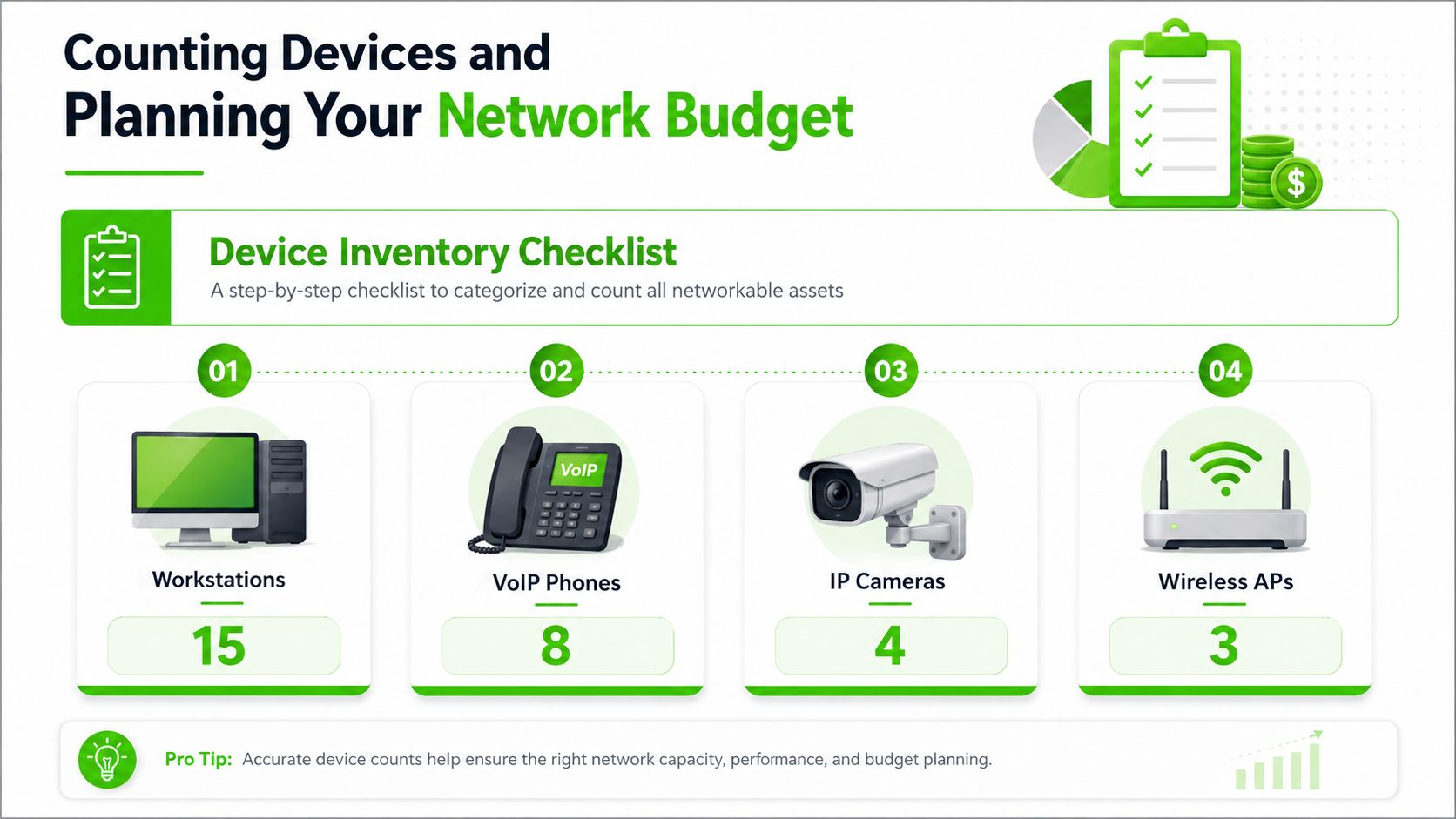
Start with the devices, not the box list. Count every workstation, laptop, VoIP phone, camera, printer, tablet, and guest device that will sit on the network, then separate what is permanent from what is occasional. A 25-employee office can already have 25 workstations, 15 VoIP phones, 8 security cameras, and 4 printers before anyone brings in a phone or a visitor device, according to the planning guidance in the brief (iFeelTech). Headcount alone misses the actual load.
Inventory drives the design. If you know how many endpoints are fixed, mobile, shared, and guest-facing, you can map roles to ports, access points, and switch capacity instead of guessing under pressure. I have seen offices buy a small router, then discover a month later that cameras, phones, and printers have consumed the available ports and there is no clean way to add more without tearing the setup apart.
Inventory first, budget second
Once the device mix is clear, project forward for the next 2 to 5 years. That forecast affects port counts, access point placement, cabling, and switch selection. It also keeps you from buying gear that looks inexpensive now but runs out of ports as soon as the office adds more phones, cameras, or shared devices.
Budgeting works better when you think in ranges instead of wishful totals. One guide estimates $400 to $1,200 per employee for complete network infrastructure, while another places realistic startup budgets at $3,000 to $5,000 for 5 to 10 users and $5,000 to $15,000 for 10 to 50 employees. Those numbers reflect real-world choices like managed switches, access points, cabling, and configuration, not just a router in a box. If the office mixes Windows and Mac devices, or if remote work matters, the plan has to account for that too, including how endpoints are issued and refreshed through computer rental for business scalability and security guide.
Good planning saves money twice. It prevents buying too little gear up front, and it keeps you from paying for emergency fixes after users are already working.
A practical inventory turns into better network decisions fast:
- Fixed workstations: usually deserve wired ports, especially when they handle finance, design, or file-heavy tasks.
- Voice and cameras: count them separately because they consume ports even when they do not look like “computers.”
- Printers and shared devices: need placement close to users or a deliberate network segment.
- Guest devices: should be assumed, not hoped away.
That same inventory also clarifies where flexibility helps and where it does not. A desk that stays put for years is a different buying decision from a laptop pool that changes every quarter, and the budget should reflect that difference. For a clearer view of how device planning affects refresh timing and endpoint strategy, see the computer rental for business scalability and security guide. If you size the network around today's staff count instead of tomorrow's actual endpoints, you will be rebuilding too soon.
Choosing Between Wired Ethernet and Wi-Fi for Each Role
The first decision is rarely about speed. It is about fit. A small office usually has a mix of fixed desks, roaming laptops, shared devices, and gear that must stay online even when people move around the building.
Where Ethernet still wins
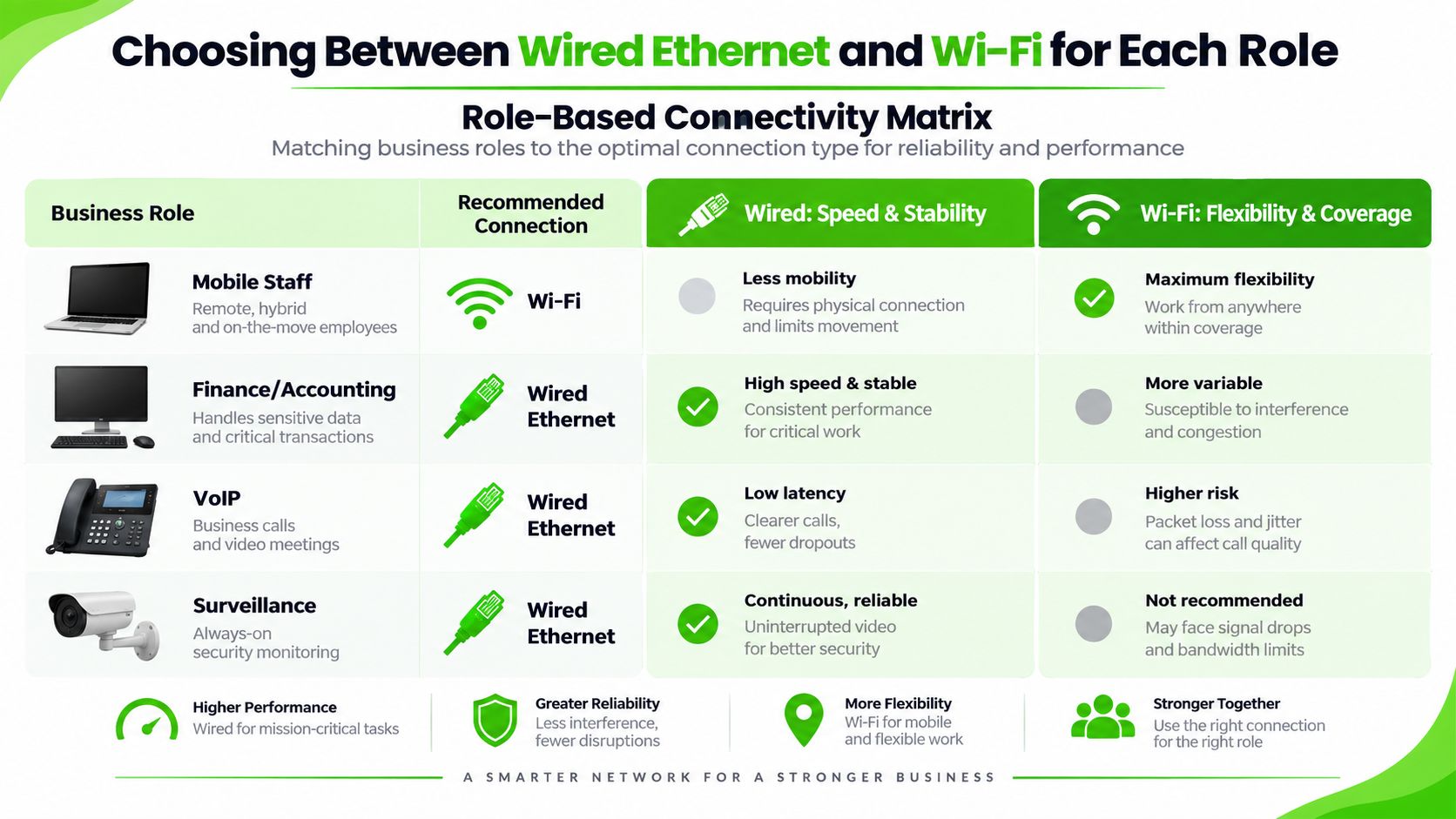
Ethernet is the better choice for fixed workstations, finance desks, VoIP phones, printers that must stay reachable, surveillance gear, and anything that cannot afford signal dropouts or roaming issues. Cable gives you predictable latency, fewer variables, and one less source of trouble when users call about slow or unstable connections. If a device sits in one place and does real work all day, copper usually earns its keep.
That is especially true for desks that handle accounting, design, file transfers, or other traffic that gets painful fast when wireless quality slips. The comparison chart showing business roles and whether Wired Ethernet or Wi-Fi is the recommended connection type. makes the pattern obvious, stationary roles lean toward wired links, while mobile roles do not. In practice, that split saves time during troubleshooting and reduces the number of tickets that start with “the Wi-Fi is acting up again.”
Where Wi-Fi is the better fit
Wi-Fi makes sense for laptops, tablets, hot desks, conference-room overflow, and staff who move between spaces during the day. It also suits guest access, where mobility matters more than a dedicated jack at every seat. That flexibility matters in mixed-device offices, especially when users are not tied to one desk.
Modern setup guidance points to Wi-Fi 6/6E for mobile devices and guest access, with WPA3 where available and isolated guest access as standard practice (AdaptiveIS). That trade-off is usually right when you need coverage without running a cable to every table or temporary workstation. It works well, as long as the access points are placed with the building layout in mind.
The common mistake is assuming wireless can cover every role just because it is faster to deploy. It often looks fine on paper and then falls apart in the actual office. Wall materials, interference, and poor AP placement can create dead zones, weak roaming, and random slowdowns that cable would not introduce. I have seen small offices blame the internet when the issue was an AP tucked into the wrong corner of the floor plan.
A practical role map usually looks like this:
- Front desk and accounting: wired when the desk stays put.
- Conference rooms: wired for presentation gear, wireless for laptops.
- Warehouse scanners or roaming staff: wireless if movement is the job.
- Security cameras: usually wired, since they are stationary and always on.
The right answer is not to force one connection type across the whole office. It is to match each role to the link that fits how that person or device works. If you are weighing a more opinionated rollout, some providers also document the planning side of network services for Canadian SMBs.
Building the Physical Network From Router to Endpoints
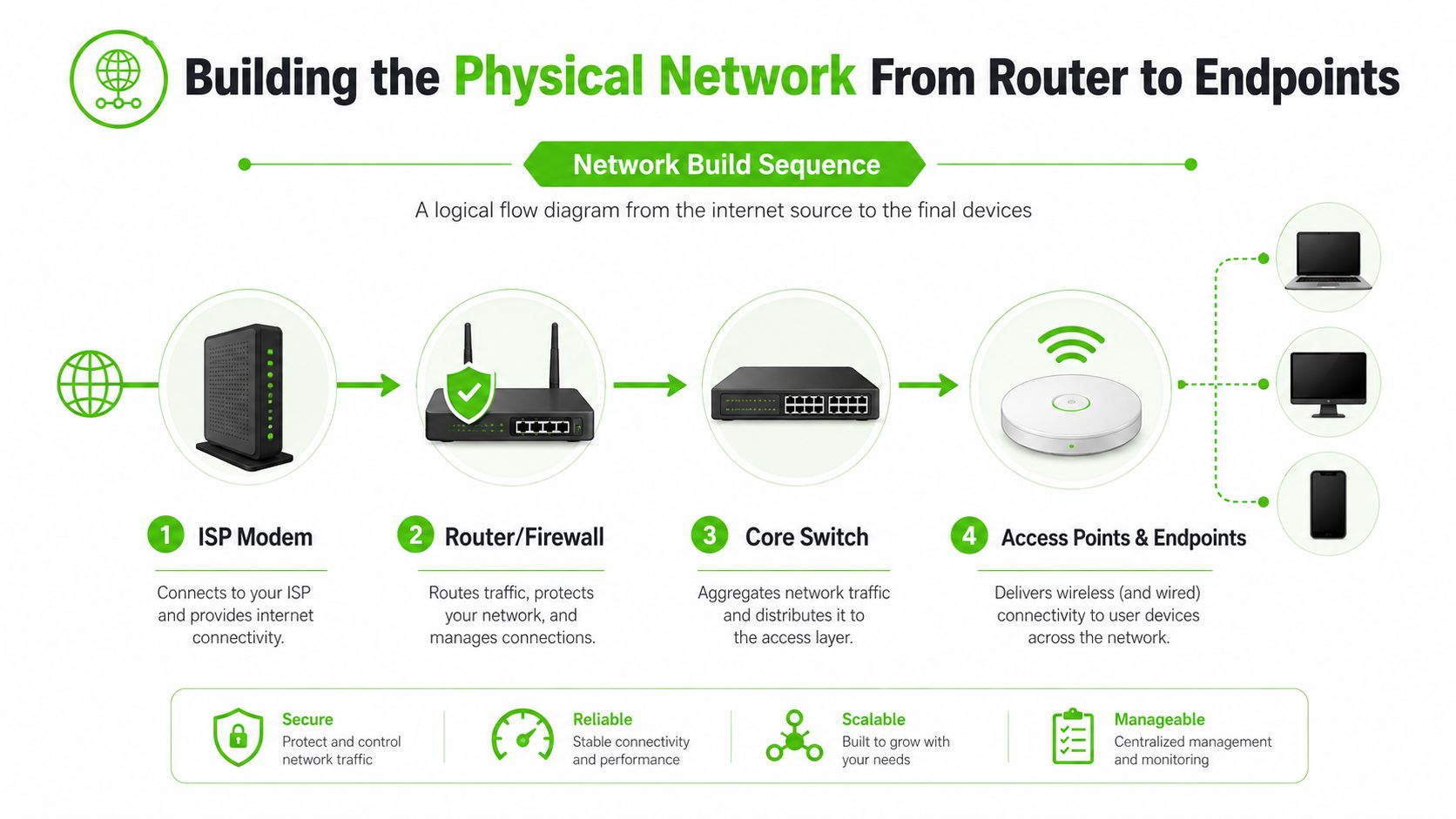
A small office network works best when the physical path is obvious from the start. The ISP modem or ONT hands off to the router/firewall, the router hands off to a core managed switch, and the switch feeds access points plus wired endpoints. That layout keeps the first ninety days easier to support, because every device sits on a path you can trace without guessing.
The mistake I see most often is rushing hardware into place before the office plan is clear. A reception desk that never moves has different needs from a conference table that gets reconfigured every week, and a label printer on a back counter does not belong in the same placement conversation as a roaming laptop cart. Build the physical network around those roles first, then place the gear.
Build the core before the edge
Start with the handoff from the modem or ONT, then bring up the router/firewall, then the switch, then one access point and one wired client. That order lets you verify each layer before the next one adds noise. If something fails, you know where to look instead of chasing a problem across the whole office.
The small details save the most time later. Leave a 10% cable-length buffer during planning, label both ends of every run, and test continuity or wire maps on each cable before go-live, as recommended in the installation guidance. Keep data cabling away from electrical lines, and ground switches properly. I have seen offices lose half a day to a bad punch-down that would have been caught in ten minutes with a basic cable tester.
Cable choice should match the office, not the fantasy
Cat6 is a practical default for most small businesses because it handles normal office traffic well and leaves room for future changes. If a department will carry heavier traffic later, plan the uplinks and cable paths for that now instead of assuming every run can be upgraded without cost or disruption. Shared work areas, printers, and conference devices usually need different treatment than fixed desks, and the cable plan should reflect that.
A few installers also publish practical network services notes for office environments, including guidance similar to small business network support in Houston. The useful part is the process, not the label on the van. Document the topology, test one layer at a time, and keep the hardware where a technician can reach it without moving furniture or opening ceiling tiles.
For a broader look at why early design choices matter, the article on network defense planning for small businesses is a useful companion. Physical layout and security planning affect each other from day one, because a clean build is easier to segment, easier to test, and less likely to turn into a support headache when the office gets busy.
The goal is a physical build that is easy to read months later. When the routing, labeling, and device placement make sense, the network is simpler to support and far less painful to change.
Designing Security and Network Segmentation From Day One
A small business network needs clear boundaries before the first laptop joins it. Start with a firewall at the edge, separate employee and guest access, and decide which devices should never share the same path. Basic setup guidance for small offices points in the same direction, change default admin passwords, place a router or firewall at the edge, and keep the primary wireless network separate from the guest network. That is the starting line, not the finish.
The cost of getting it wrong shows up fast. If downtime can run $137 to $427 per minute for small businesses, then a network that turns a small fault into a full outage is a bad design choice, not bad luck (Metfl Services). A flat network makes that risk larger because one compromised laptop, one guest device, or one unstable IoT endpoint can reach too much of the office. Segmentation narrows the blast radius.
Segment by trust, not by convenience
Use VLANs or separate SSIDs to split traffic into buckets that match how the business works. Employee devices should not sit on the same path as guest traffic. Cameras, printers, and other fixed-purpose gear should live apart from user workstations. If a printer or conference device gets compromised, it should not have a clear route to the rest of the office.
For a practical perspective on network hardening in SMB environments, the segmentation advice for SMBs is a useful reminder that segmentation is a control strategy, not just a switch setting. The point is simple. Only the people and devices that need access should have it.
I keep a few day-one habits in place because they prevent the mistakes that show up in the first month of live traffic:
- Change default credentials: do not leave vendor logins in place.
- Update firmware before production: avoid pushing known problems into live use.
- Separate admin access: keep management traffic away from general user traffic.
- Document who owns each segment: that speeds up troubleshooting later.
Mixed-device offices need a stricter default. If a device does not need access to internal shares or internal hosts, do not give it that access just because it is connected. That approach keeps guest devices, personal phones, and low-trust hardware from becoming a back door into the rest of the network.
For a broader security checklist around office networks, see network defense planning for small businesses. Security is cheaper when it is built into the original design. After the office is live, every missing control costs more to add.
Testing and Validating Before You Go Live
The first real test is not whether the gear powers on. It is whether one wired workstation, one Wi-Fi laptop, and the internet connection all behave the way they should before anyone else starts working. I always verify those basics first, then I move through printers, file shares, and routing between segments one by one so a problem stays small enough to fix.
Use a staged validation checklist
Start with the boring checks, because that is where the failures usually hide. Confirm that each VLAN has its own gateway and DHCP lease, then test guest isolation so visitors can reach the internet without seeing internal devices. After that, check one printer, one shared folder, and one endpoint in each major segment so you know the design matches the way the office works.
A short checklist keeps the rollout disciplined:
- One wired test client: confirm internet access and basic routing.
- One Wi-Fi test client: confirm the SSID, authentication, and roaming behavior.
- One printer or shared device: verify reachability from the correct segment.
- Guest network test: make sure guest devices cannot reach internal systems.
- Cable validation: run continuity or wire-map testing on every line before sign-off.
Document the outcome as you go. Record IP ranges, SSID names, admin credentials, and which device was used for each test, then store that information where the business can reach it safely later. That kind of record may feel like paperwork in the moment, but it saves time when the first support call comes in and nobody remembers which segment feeds which office.
Do not let a network pass because it is mostly working. A partial pass usually turns into a support ticket once staff start using it for real work.
If the office needs a recovery plan before production traffic starts, the cloud disaster recovery guide for SMBs fits naturally alongside this validation work. Testing is not only about getting the office online today. It also proves the network can be supported, documented, and recovered without guessing when something breaks later.
Common Network Setup Mistakes and How to Avoid Them
The same mistakes show up in small offices again and again. Teams undercount endpoints, skip cable testing, leave firmware at defaults, and run data cables too close to electrical lines. Each one looks minor at first, then the setup starts causing outages, weak wireless coverage, or security gaps that are hard to trace later.
Fix the problem that is in front of you. If the office is still on paper, finish the inventory before buying gear. If cable runs have not been tested, test them before users move in. If default passwords still exist, change them before production traffic starts. If the network is flat, separate guest and internal traffic now instead of waiting for a problem to force the issue.
Mixed Windows and Mac fleets add another layer of reality. So do managed services, endpoint protection, and remote monitoring. I have seen small businesses reach the point where it makes sense to bring in a local IT provider for the first deployment and for ongoing support, especially when the office depends on both Wi-Fi and wired devices all day. We Fix PC Laptop handles network support, Wi-Fi setup, router and modem configuration, printer setup, and small-business IT consulting from its Houston operation, which can fit well when the build needs both setup and follow-through.
The cleanest rule I use with owners is simple. If the network has to support people working right away, do not treat installation as a DIY experiment. A professional deployment should leave behind a labeled topology, a segmented wireless design, tested cable runs, and enough documentation that the next repair does not start from zero.
If you want stronger network defense for businesses, contact We Fix PC Laptop and ask about small-business network setup, Wi-Fi troubleshooting, router configuration, and office support. Their team works with mixed-device environments and can help you build something that is documented, tested, and ready for day one.